
Someone in the family makes the invite and sends you a link or 6 letters (see Invite someone to your family). How you join depends on whether you already have a family in the app.
An account can be in up to five families, and a parent in one of them only. In any other, you join as a caregiver or with view only.
Already in a family? Open the switcher
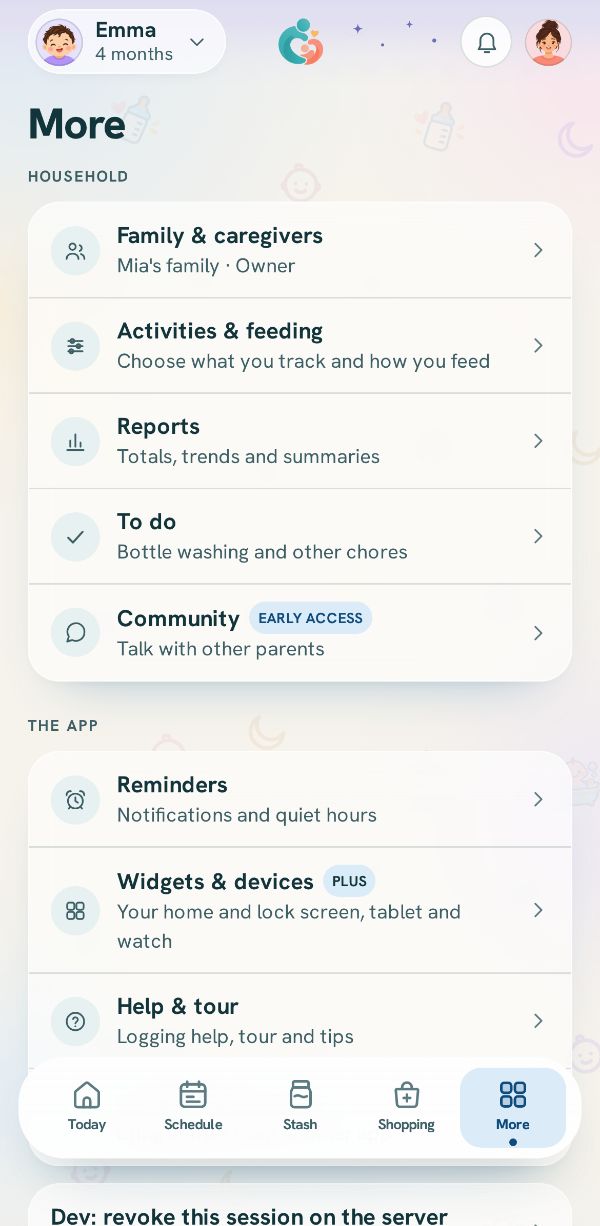
In More, tap Family & caregivers, then tap your family's name at the top, the one with the down arrow. Switch family opens with every family you are in.
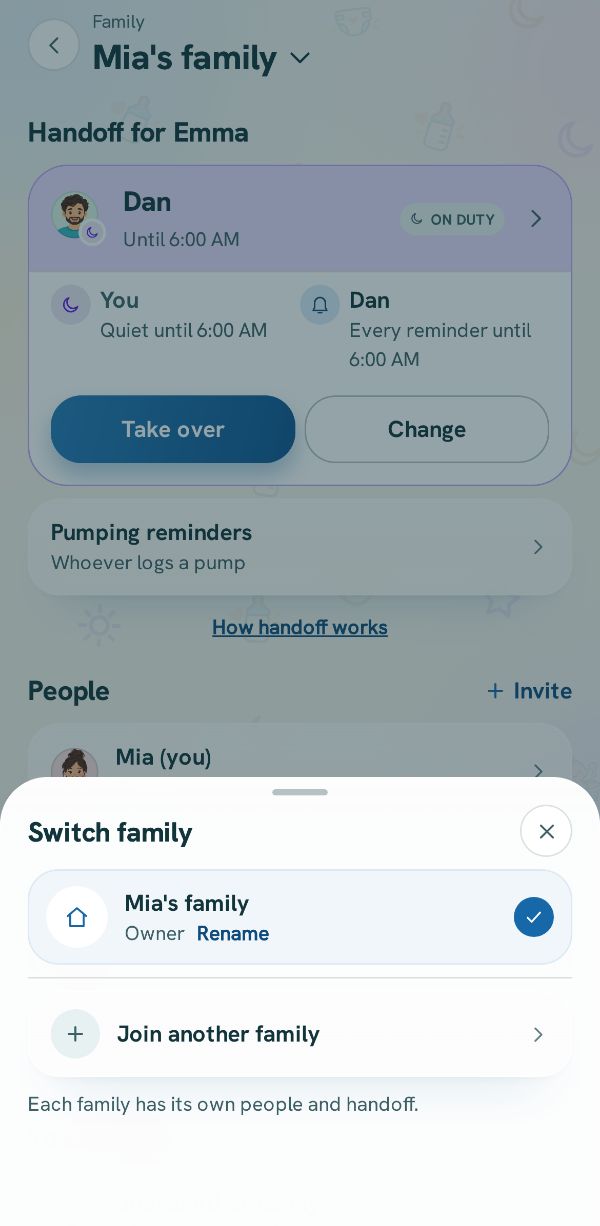
Tap Join another family
It is at the foot of the switcher, and at the foot of Family too, under Your families. Join a household opens.
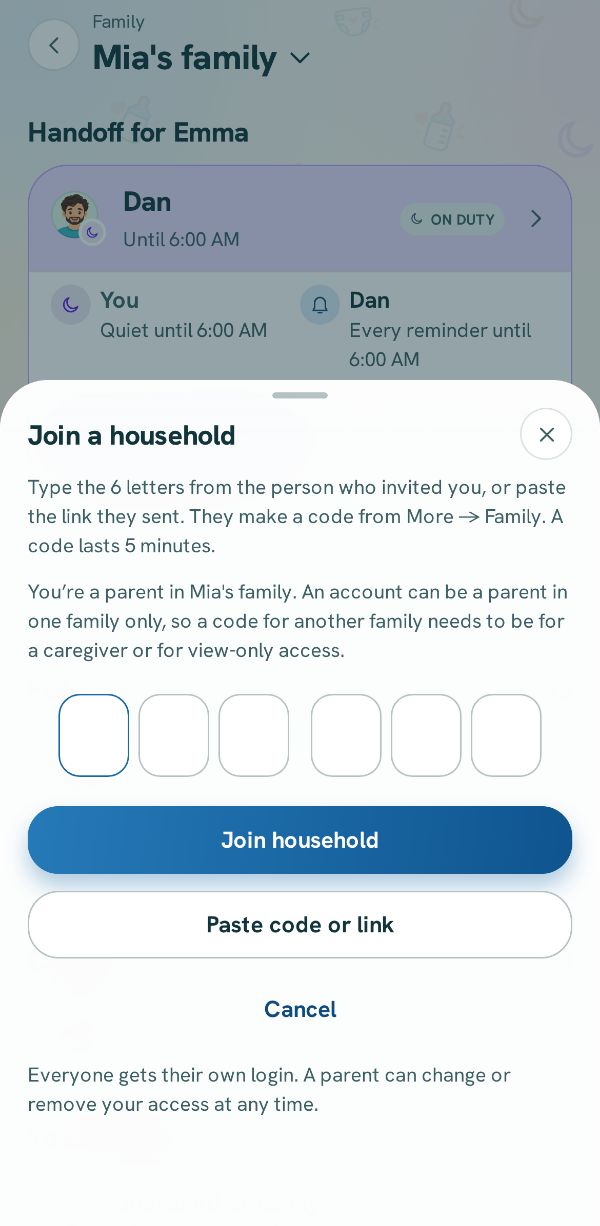
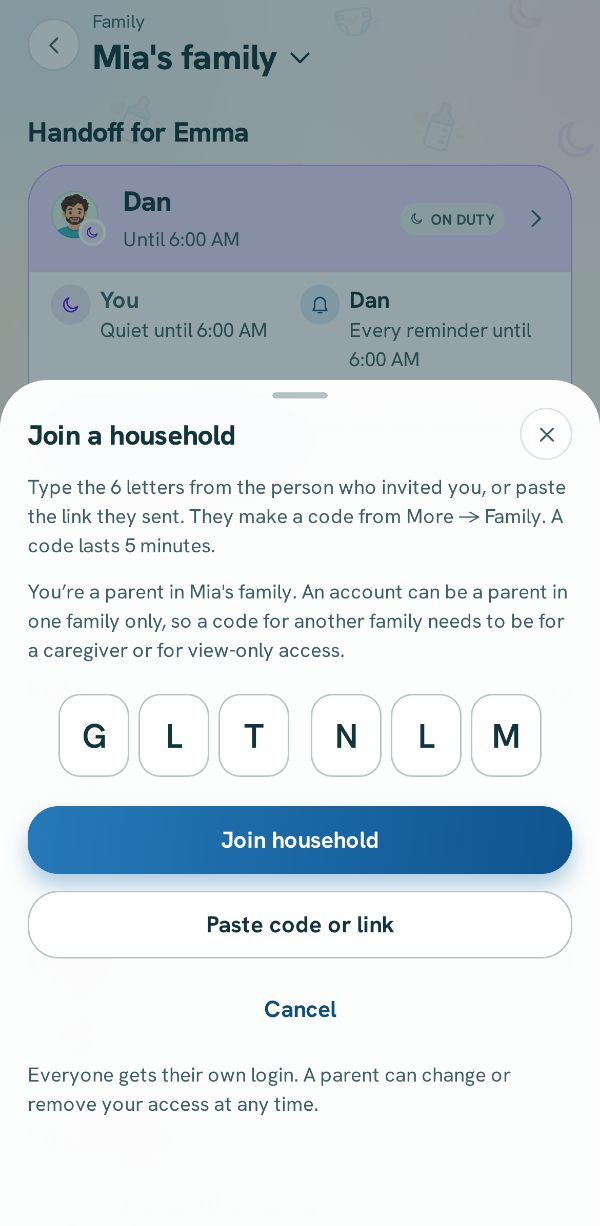
Type the code, or paste the link
Type the 6 letters, or tap Paste code or link if you copied what they sent. Then tap Join household.
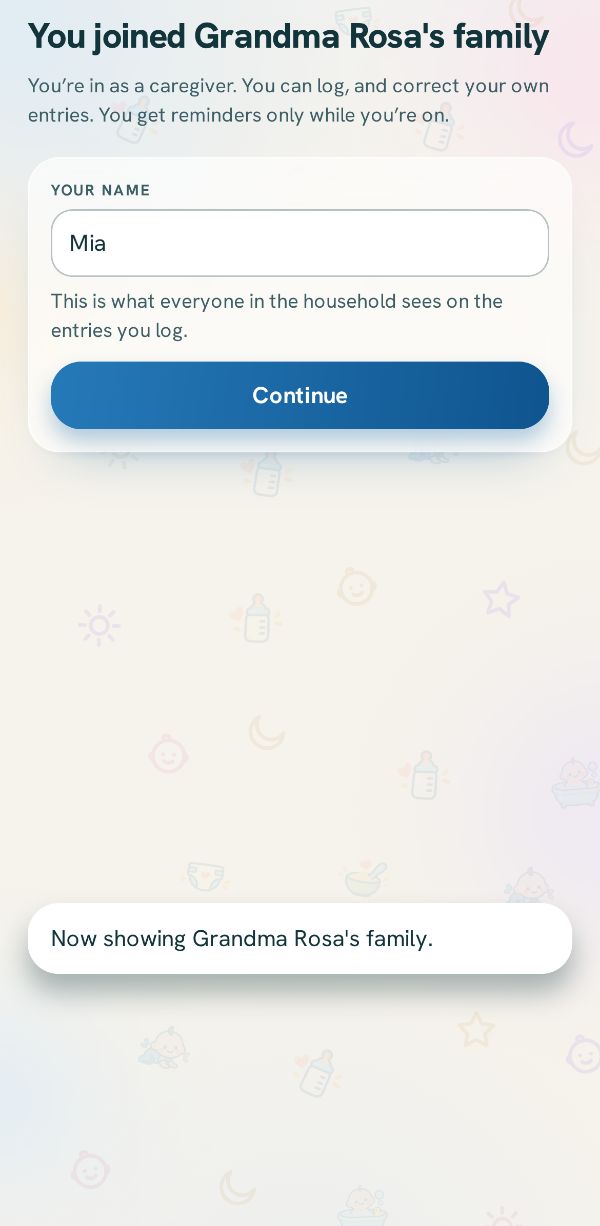
You are in
The app says which family you joined and as what. It asks your name as that family will see it on what you log, and above it you can Add a picture if you like. A drawing someone in that family already uses is faded and cannot be picked. Tap Continue, and that family comes on screen. Your own family is still there, one tap away in the switcher.
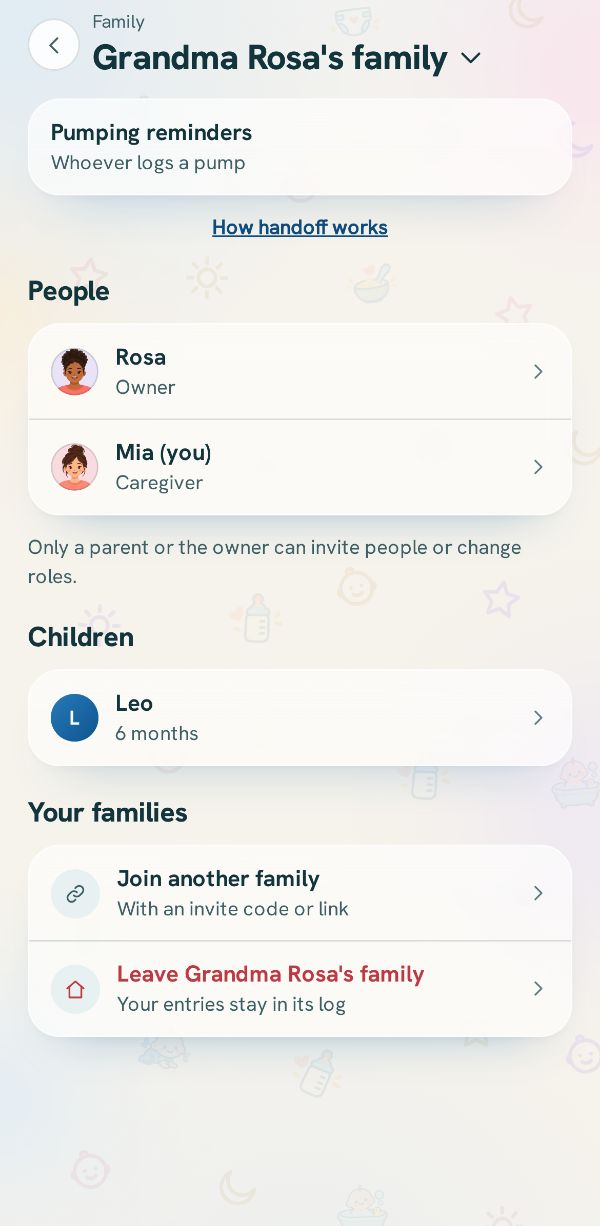
Find it in Family
Family now shows the family you joined, with its name in the bar. Tap the name to go back to your own.
Related guides
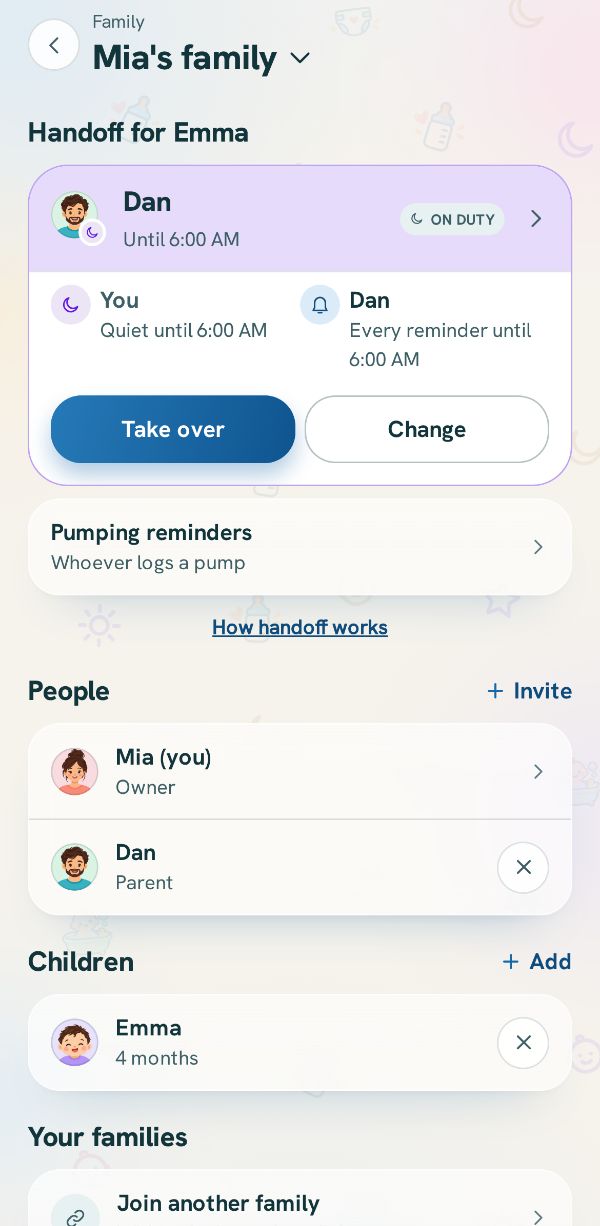 Switch between families, and rename yoursMove between the families you are in, and change your family's name if you are its owner.
 Invite someone to your familyBring in the other parent, a grandparent or a sitter, each on their own phone and their own login.Free
 7 steps
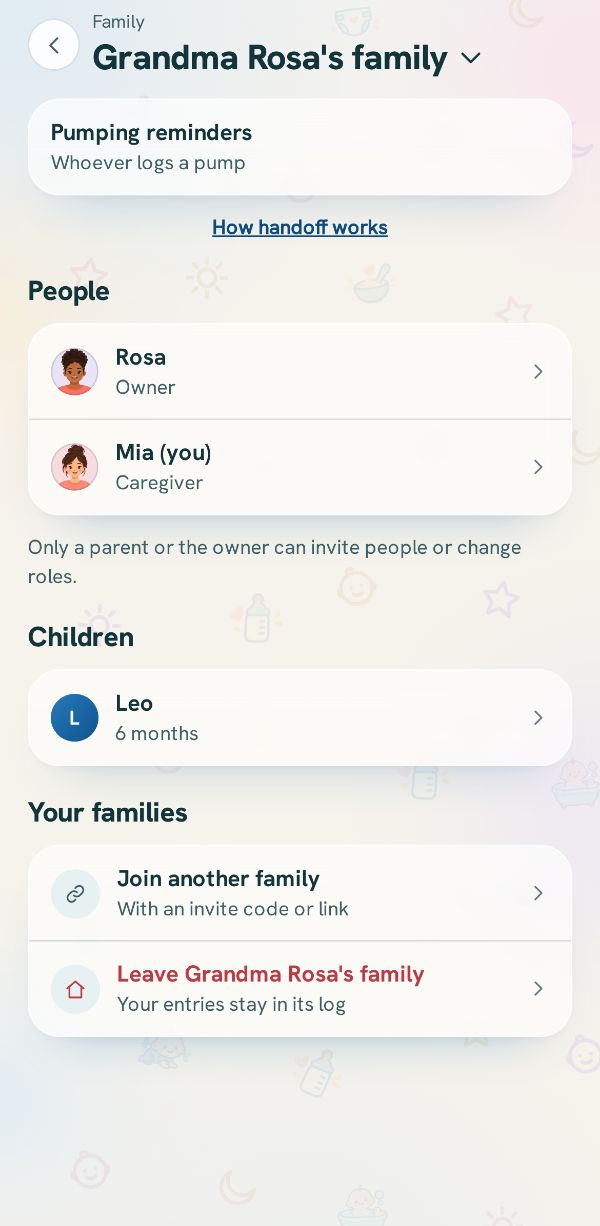 Leave a family, or start your ownLeave a family you joined, hand yours over before you go, or set up a family of your own.