Try another word, like the name of a button, or look in the guides. Or write to us and we will answer.
Signing up and signing in
Everyone who looks after the baby signs in with their own account, on their own phone. There is no guest mode, because the log is shared between your phones from the first entry.
Creating an account
Where: The first screen after you install the app.
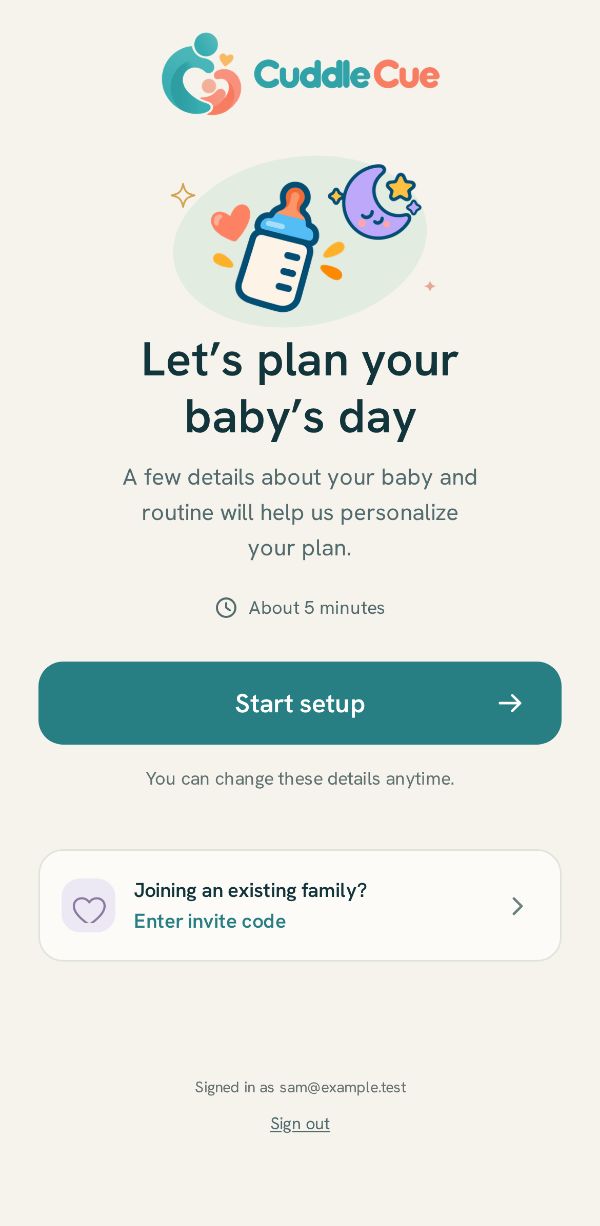
The first screen asks you to sign in or create an account, and offers three ways: Continue with Apple on an iPhone, Continue with Google, and Continue with email. With email, enter your Email and a password of at least 10 characters, then tap Create account. Creating an account agrees to the Terms and the Privacy Policy, as the line under the buttons says; tap either name to read it. Already have an account? Tap Sign in, the underlined link that ends the same question under the panel.
Check your email comes next: open the link on this phone. It works once and expires in an hour, and Resend the email sends another. A short setup about you and your baby follows. Only the basics are needed, your role at home is optional, and if this is the wrong account, Sign out is on setup's first pages. Your household's 14 days of Plus start when a parent taps Start my 14 days on the Plan page, whenever they choose; the end of setup says where that is, and starts nothing. If you set up before the birth, they wait for your baby. If someone invited you, tap Join your family instead.
Setting up before the birth
Where: Setup, the first page, Is your baby here yet?. After the birth: Today, The baby is here, then the page that goes through your baby's day.
On the first page of setup, answer Is your baby here yet? with Not yet and pick the Due date. The baby's name can wait. The rest of setup works as it does after the birth.
Until the birth, pumping and the milk stash work, along with the shopping list, supplies and to-dos, so any colostrum you collect can be logged and kept in the stash. Today shows a card for the baby on the way with the days to go, and under it Getting ready: shared checklists, appointments and contacts. The tour and everything else you chose in setup start with your baby. Your household's 14 days of Plus wait for the birth too, and then start when a parent taps Start my 14 days.
When your baby arrives, tap The baby is here on that card, set the Date of birth, change the name if you like, and tap Save. The app asks once more, because a birth can't be undone: tap Record the birth, or Not yet to go back. Only a parent or the owner can do this. Your lists and appointments from before the birth then become a keepsake on Reports. Expecting another baby later? Add a child on Family has the same Not yet choice.
Then a page opens to go through your baby's day one part at a time, since setup's answers were made before you had met: the Wake and bed times, each rhythm, each medicine, the bath and tummy time. Tap Looks right or Change on each one (a part with nothing set says Set it up or Not now), and tap Done at the end. Finish later keeps a card on Today until you finish, or until you tap Not now on it, and the tour comes after. Every part can be changed again any time on the Routine page.
Joining a household
Free
Where: The first screen, Join your family. Already in one: More, then Family, then Join another family or Start your own family.
On the first screen, under Have an invite?, tap Join your family. Type the six letters from the person who invited you, or tap Paste code or link, then Continue; the app names the household and keeps your invite. Then tap Create an account to join or Sign in to join, and you join as soon as you are signed in (a new account confirms its email first). Tapping an invite link works the same way. The page that says you joined asks Your name as the family will see it, and above it Add a picture lets you pick a photo or a drawing if you want one; it is optional, and you can change it any time in Your profile. A drawing someone in the family already uses is faded and cannot be picked. An account can be in up to 5 families, and a parent in one of them: a babysitter or a grandparent joins each family as a caregiver. Already in one, tap Join another family on Family and type the new code; the family you joined comes on screen. To go back and forth, tap your picture at the top, or open Family, and pick a family under Your families. Entries you logged in one family are sent before you switch, so if you are offline with entries waiting, the app asks you to switch once they have sent. Have a baby of your own? If you help in your families as a caregiver or with view-only access, tap Start your own family on Family and go through setup; your new family comes on screen with you as its owner, and the families you help in stay as they are.
Signing in and resetting your password
Where: The first screen, on the Sign in side.
On a phone that has signed in before, the first screen opens on Welcome back; anywhere else, tap the underlined Sign in under the panel. Someone new on that phone taps the underlined Create an account after New here? instead. Use the way you signed up: Continue with Apple (on an iPhone), Continue with Google, or Continue with email and then your Email and Password. Forgot it? Tap Forgot password?, enter your email on Reset password and tap Send reset link. If that address has an account, an email arrives with a link and a 6-digit code. Both work once and expire in an hour. Open the link on the phone you asked from, or, if you read the email somewhere else, type the code under Enter the 6-digit code and tap Continue. A code that does not work? Tap Resend the email under it for a new one. Either one opens Choose a new password: type a New password of at least 10 characters and tap Save password. Your other devices are signed out and this one stays signed in. You can also change your password any time from Your profile with Change password. That page asks for your current password. Forgot it there too? Tap Forgot it? Email me a link and the same reset arrives.
Getting around
The tab bar, the + button and the top bar take you anywhere in the app and show which baby you are looking at.
Tab bar
Free
Where: Bottom of every main screen.
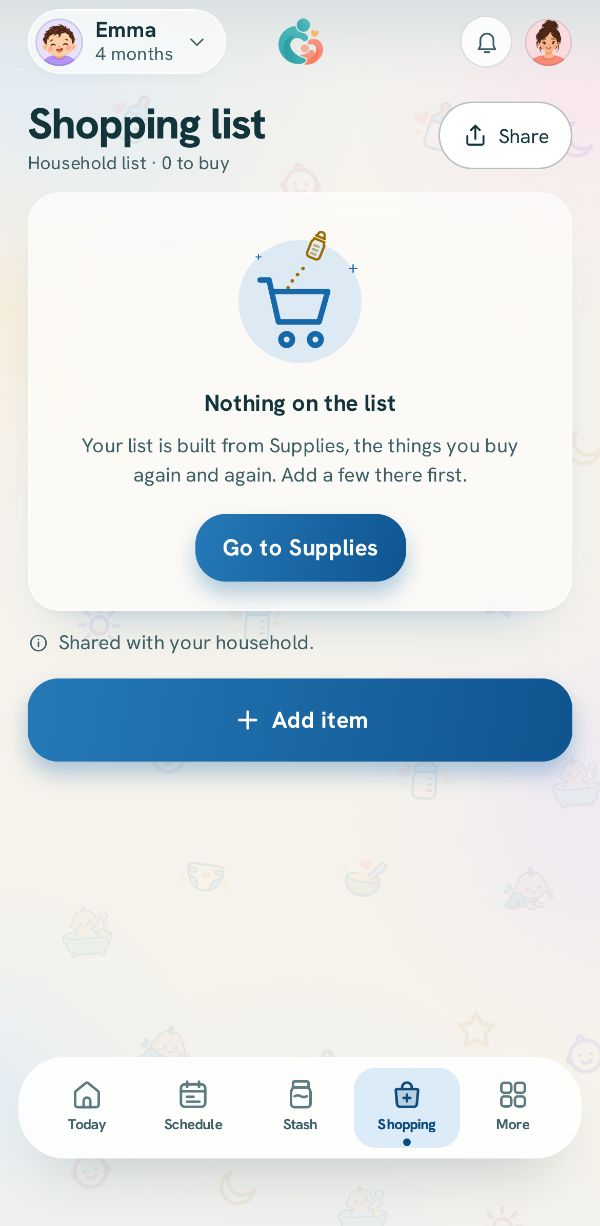
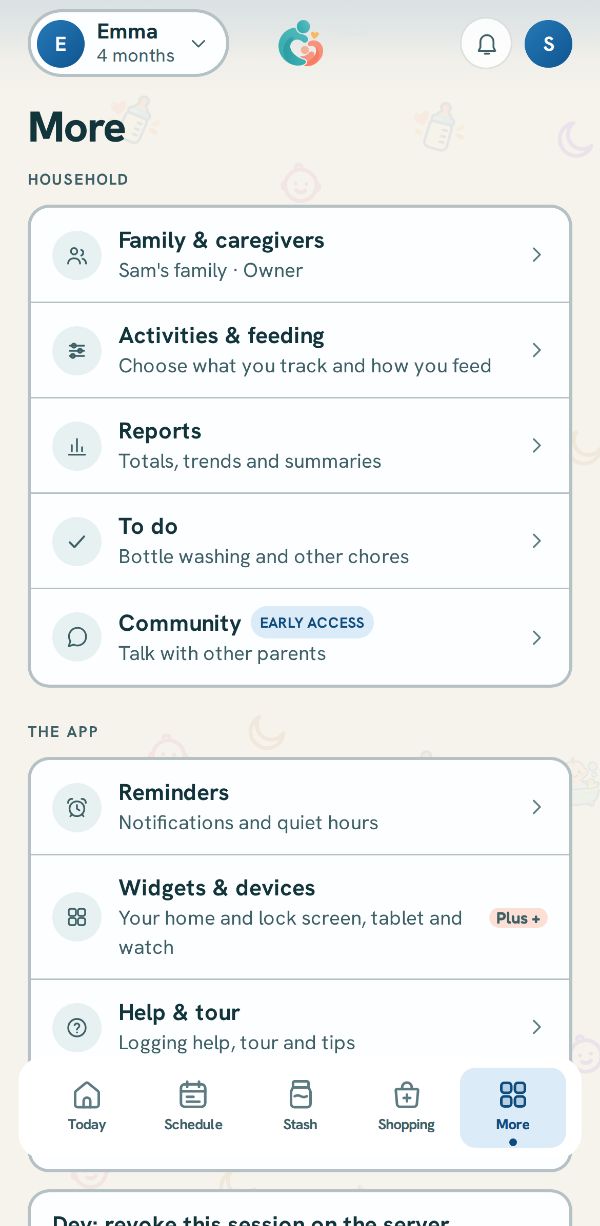
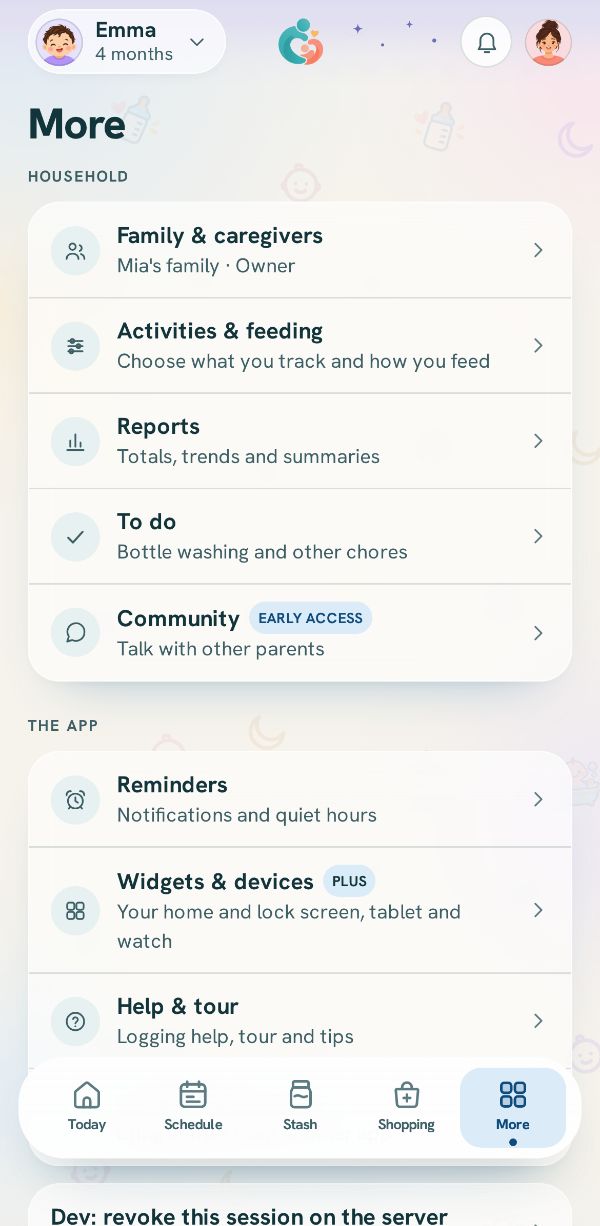
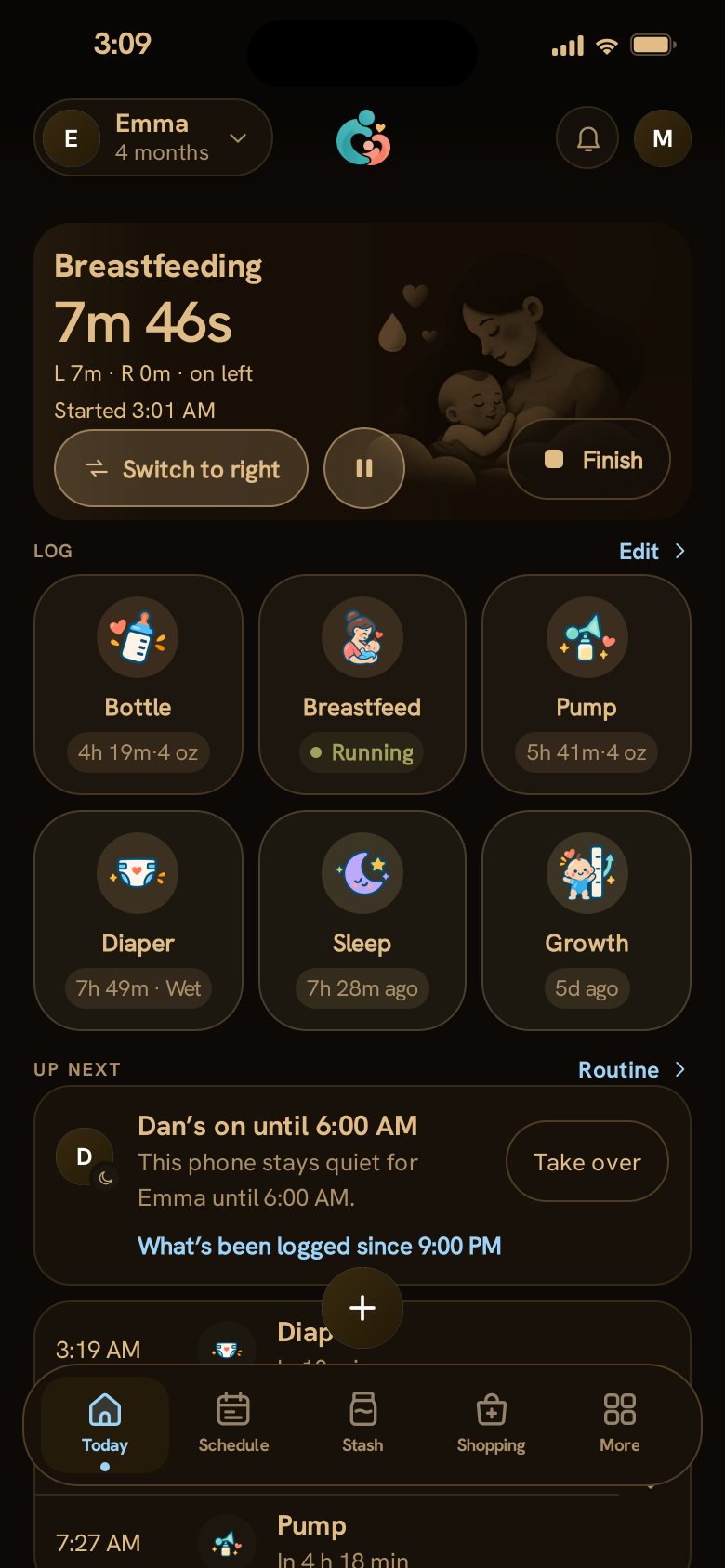
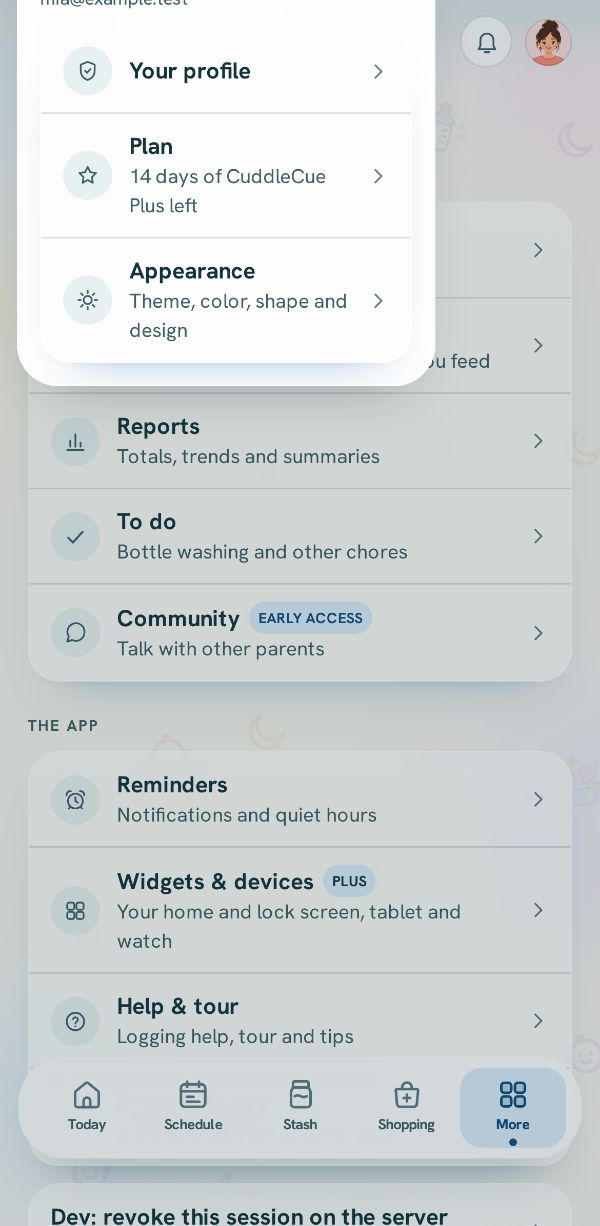
The bar holds Today, Schedule, Stash, Shopping and More, and the one you are on is marked with a soft highlight and a dot. Today is the baby's day, Schedule lays out the day from your household's schedule with Routine and Reminders at the top, Stash is the milk stash and Shopping is the shopping list. Stash only appears when the milk stash is turned on in Activities & feeding. More holds Family, Activities & feeding, Reports, Community, Reminders, Help & tour and a few app settings.
+ button and Quick log
Free
Where:Today tab, the round + above the middle of the tab bar.
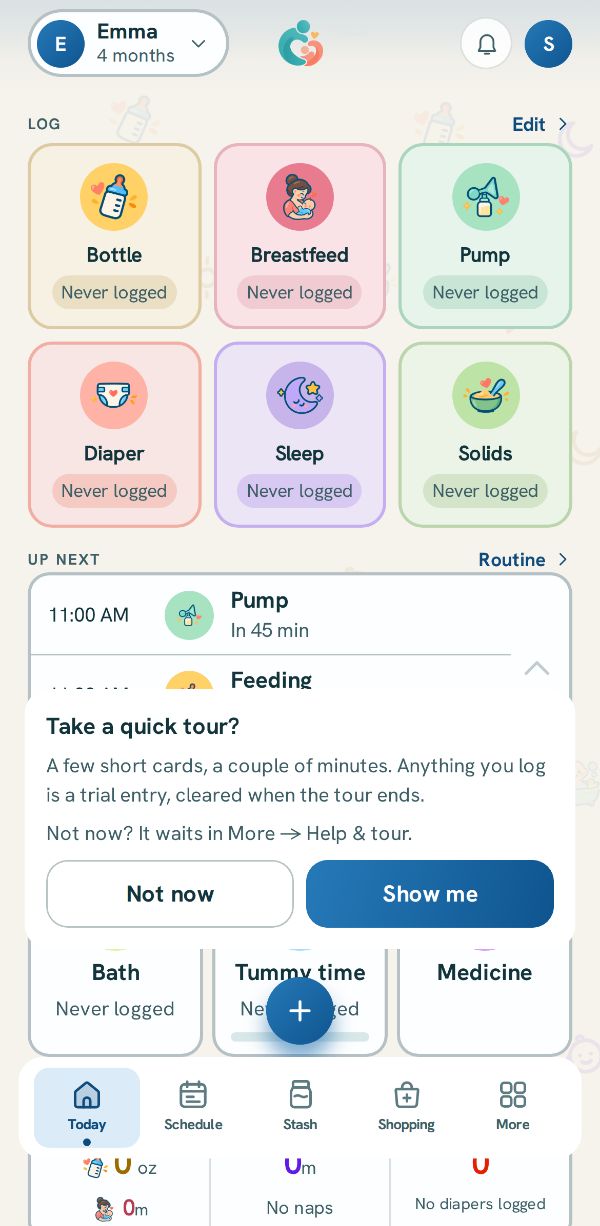
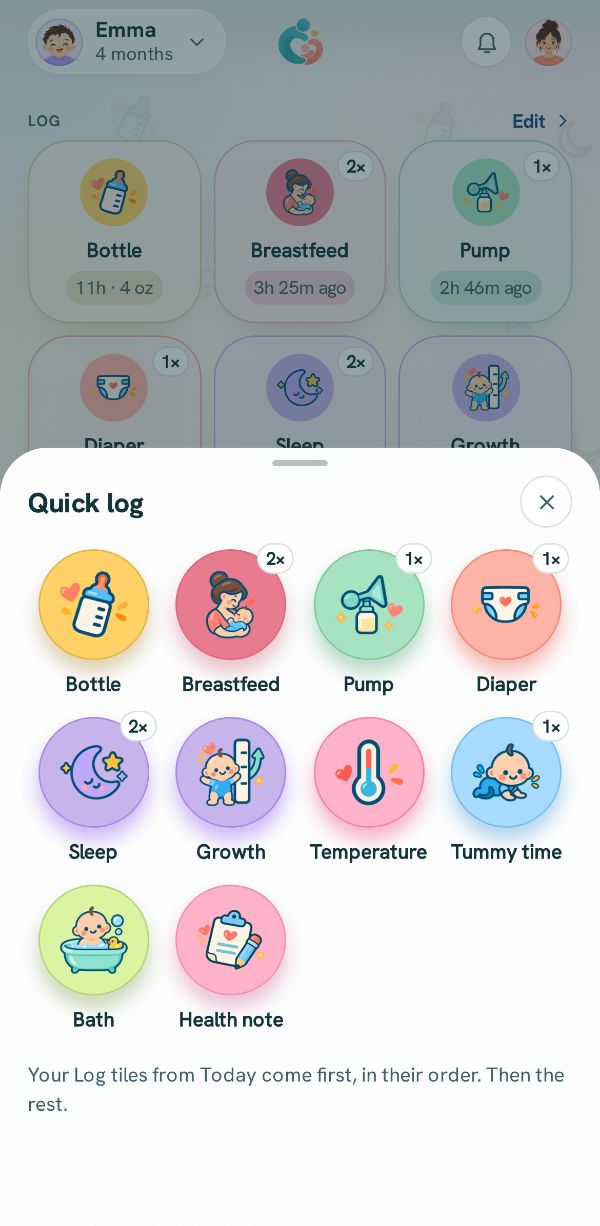
The + floats above the middle of the tab bar and only shows on Today; Stash and Shopping have their own Add milk and Add item buttons in its place. Tap it to open Quick log, a grid of every module your household tracks that can be logged, four across, with a count in the corner of anything logged today: your Log tiles from Today come first, in the order you gave them, then the rest. Tap a tile and the same sheet turns into that module's form, so you can log without the sheet closing first. If nothing is turned on yet, it says Nothing to log yet and tells you to turn on what you track in More.
Top bar
Free
Where: Top of every tab.
On the left is the baby you are viewing, with their picture or initial, name and age. On the right are the sync chip (only when there is something to report), the bell for What's new, and your own picture or initial, which opens your profile menu. On most pages the bar slides out of the way as you scroll down and comes back as soon as you scroll up a little. On Today it sits over a sky that changes with the time of day, and on the same date each month as the baby's birthday their picture wears a small party hat.
Switching babies
Free
Where: Any tab, tap the baby's name at the top left.
Tap the baby's name to open Children. Each baby has a row with their age and birth date. The baby you are viewing is marked On. Tap that row to change the Name, the Date of birth and the photo together, on one sheet. Tap another baby to switch. The app remembers your choice the next time you open it. The date of birth is there in case it was typed wrong. Everyone in your household sees the photo. Owners and parents also see Add a child, for a twin or a new baby.
Both (twins on one screen)
Free
Where: Tap the baby's name at the top, then the first row of Children.
With two or more babies, the first row of Children shows every baby on one screen, side by side. For twins the name at the top then reads Both and shows the two pictures as a pair. On Today each baby is shown on their own, side by side: every Log tile has a line for each baby, starting with the letter the name at the top shows for them, such as E 2h · 4 oz over L 45m · 3 oz, and its edge turns amber or red for whichever baby's time is due or missed, on that baby's line; the totals are a table for each baby under their name, and the Sleep outlook is a card for each baby with their name beside the title. Each row of Today's log and Up next carries the baby's name, such as Emma or Leo. When you log while viewing both, most sheets start with Logging for set to both babies, but a medicine or breastfeeding sheet starts on the baby whose turn is next; tap a name there to change it.
Sync status
Free
Where: Top bar, right side; a banner can appear under it.
Most of the time there is no chip, which means everything has synced. Syncing shows when sending takes more than a couple of seconds, Offline means this phone has no connection, a number with queued means that many entries are waiting to go, and Not synced with a small flag means entries have not gone through for a couple of minutes. Either way your entries stay on this phone and logging keeps working. When something needs you, a banner under the top bar says what happened, usually with a Try again button, and its X hides it for the rest of the session. When an entry could not be saved to the family, the banner also has Review, which opens Not synced: each entry, why it did not go through, and Try again or Discard, which asks first. To sync by hand, pull Today down from the top.
Bell and What's new
Free
Where: Top bar, tap the bell.
The bell opens What's new, a list of notes from the team, such as new features, tips or a service notice. A number on the bell counts the notes you have not seen yet, and unread notes are marked New. A note you closed on Today stays here with its date, so you can read it again. Reminders are not in this list; they arrive as phone notifications and are set on the Reminders page from the Schedule tab.
Profile menu
Free
Where: Top bar, tap your picture or initial at the top right.
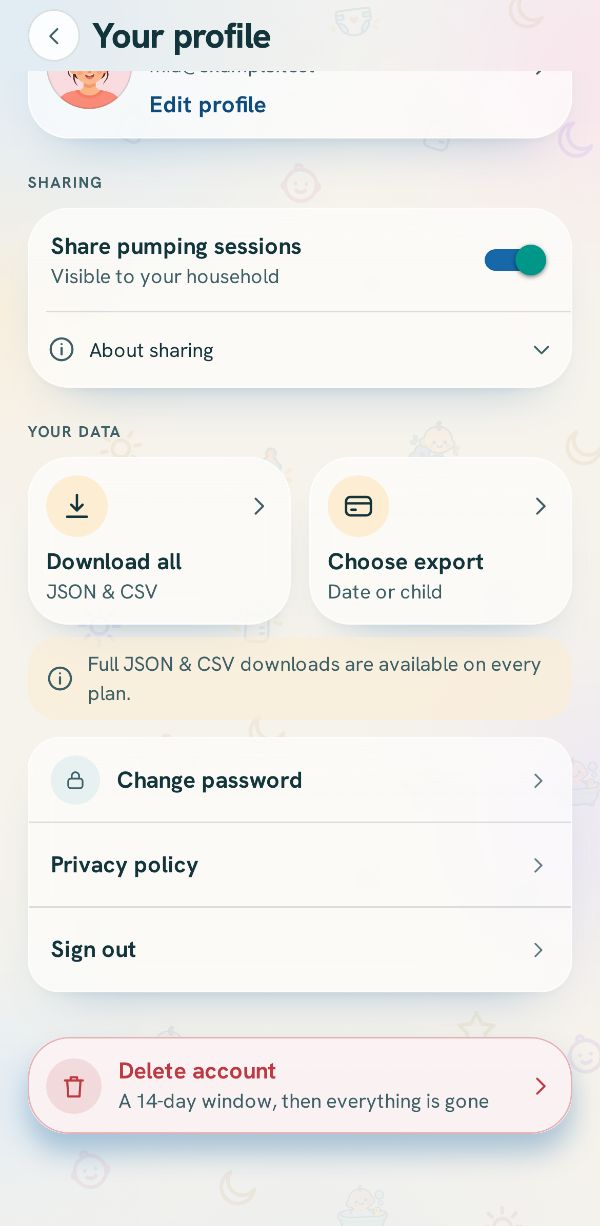
The menu shows your name and email, then three rows. Your profile holds your account details, Download all for a full copy of your data, and Sign out. Plan shows which plan you are on, with the days left while your 14 days of Plus run. Appearance changes the theme, color, shape and design and shows each change as you pick it. To show a photo instead of your initial, open Your profile and tap Profile picture; everyone in your household sees it.
The top of Today
The top of Today holds at most one message card and every timer that is running, so what is happening now comes first.
Cards at the top of Today
Free
Where:Today tab, very top of the page.
At most one card shows here at a time, and it is kept short so the Log tiles stay on screen. It can be a card the first time your phone is in a different time zone, a card for owners and parents when 3 days or fewer of the 14 days of Plus are left (with See the plans), a card when the 14 days have ended (with Keep using the free plan), or a note from the team.
A parent with nobody else in the household may see Log together, which offers to share the log: Invite opens Family, Not now asks again in a month and Just me stops asking. Each card goes away in one tap, and none of them stops you logging.
Running timer card
Free
Where:Today tab, top of the page while a timer runs.
The card says what is running, how long it has run and when it started, and it names the baby when you have more than one. To end it, press and hold the button at its bottom right until the ring inside it closes: Woke up for a sleep, Finish for a breastfeed, and Stop for pumping or tummy time. A quick tap only shows Hold to stop, so a stray touch does not end it. A breastfeeding card also shows each side's time, a Switch to right or Switch to left button and a round pause button.
Ending a sleep, feed or tummy time saves the entry, with Undo in the message that follows, and ending a pump opens the pump sheet so you can add the amount. It keeps counting even if you close the app or lock the phone, because the time is worked out from when it started.
Also running card
Free
Where:Today tab, under the two timer cards.
When two timers run, both get full cards; from the third on, the extra timers become rows in one Also running card under them, in the order they were started. Each row shows what is running, the baby's name when you have more than one, and how long it has run. Rows have no stop button, so a mis-tap cannot end one; tap a row to open that timer's own sheet, where you can stop or correct it.
Sticky timer bar
Free
Where:Today tab, near the top once you scroll down.
Scroll down past the timer cards and they fold into a strip pinned near the top of the screen, one row per timer, with the clock still counting. Each row keeps its stop button, held just like on the card, and a breastfeed's row also has pause or resume. Tap the row itself to jump back up to the cards; scroll back to the top and the strip folds away.
Logging from Today
The tiles under Log are the quickest way to record a feed, a diaper, a sleep or anything else you track, and they show when each one last happened.
Log tiles
Free
Where:Today tab, the Log section.
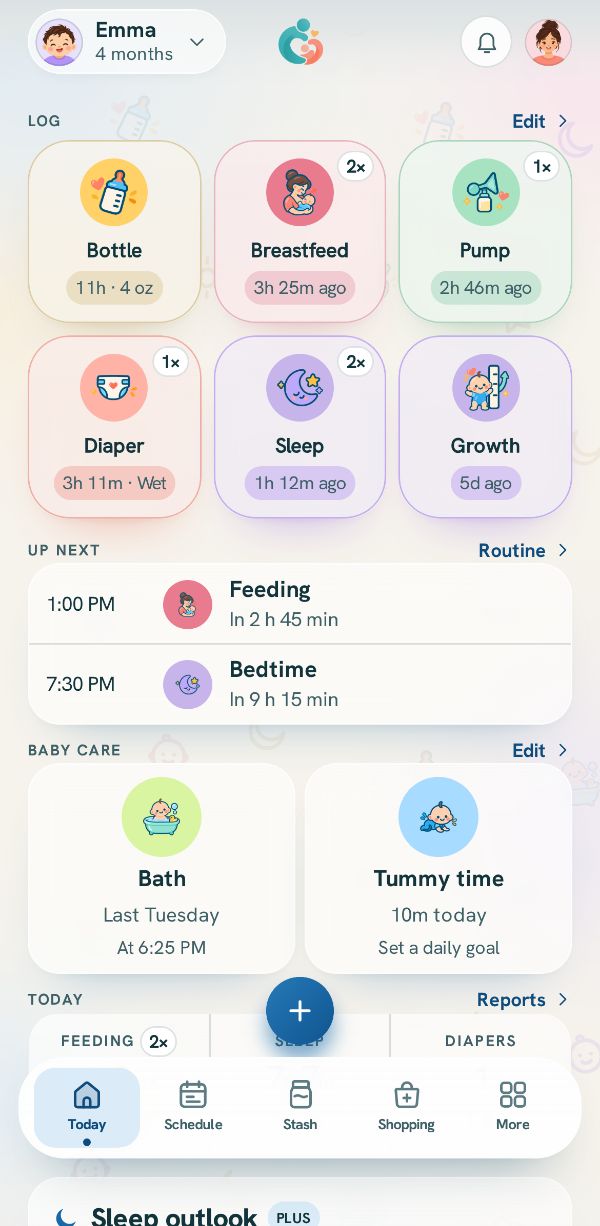
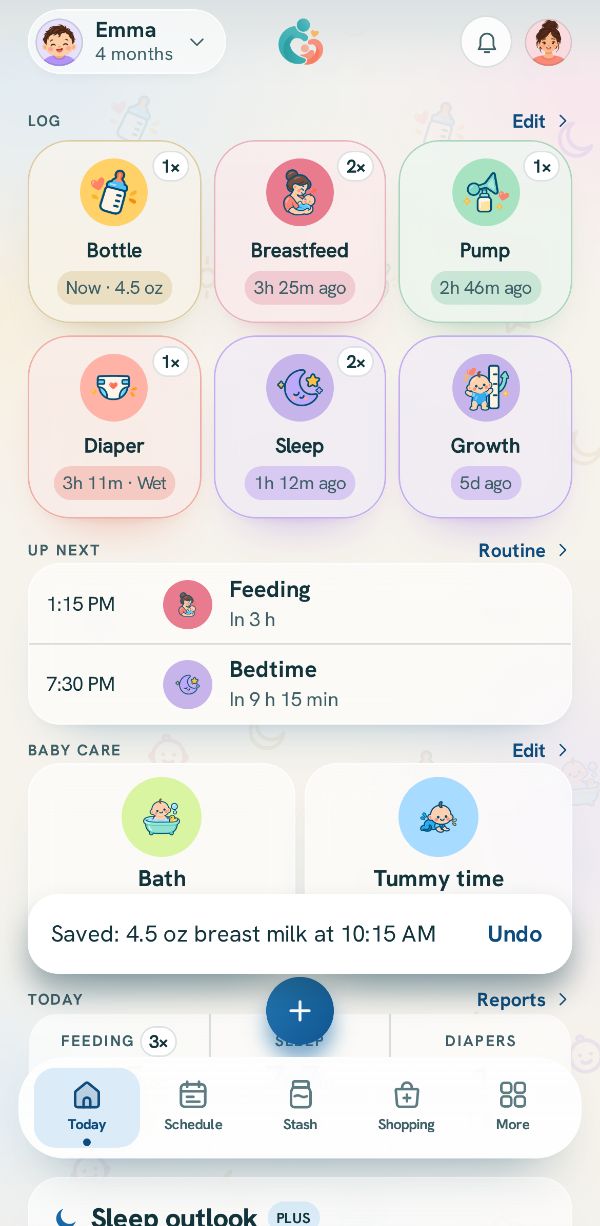
Tap a tile to open its sheet and log; Log shows up to six tiles until you choose your own. The line under each name says how long ago the last one was and what it was, for example 37m · 4 oz, or Running while its timer runs. When what it was is a length too, like a feed's minutes, the line keeps the word ago so the two are never confused: 2h 50m ago · 22 min, or 2h 50m ago where there is no room. The small number in the corner is how many were logged today, and it turns over like a counter when you save another; a bottle of water is in the log but not in the Bottle count, as in the totals.
When a time your household set in the schedule is due, the tile's edge turns amber and its line says it is due; when that time went by with nothing logged, the edge turns red with an exclamation mark and the line says missed. A tile for something never logged says so in quiet gray, and a tile stays calm while its own timer runs. With Both at the top, each baby has a line of their own on the tile and there is no number in the corner (see Both). Someone with the View only role reads View-only members can look, not log. above the tiles, and a tap on a tile says the same. Before your baby arrives, a household that is not pumping sees one line where the tiles will be, saying logging starts with the birth.
Tile shapes
Free
Where: Profile menu, then Appearance.
In Appearance you can pick Pebble (rounded tiles, three across), Bubble (circles, four across) or Capsule (wide pills in two columns, all on the page). The Swipe the log row sideways switch turns the grid into one row you swipe through. Pebble and the grid are free; Bubble, Capsule and the sideways row are part of Plus and show the Plus chip without it. If Plus ends, the app goes back to Pebble and the grid and keeps your choice for when Plus returns.
Choosing your Log tiles
Free
Where:Today tab, Edit beside the Log heading.
Tap Edit beside Log to open What shows in Log. Turn a switch on to give a module a tile, and use the up and down arrows to set the order. Up to six show, in two rows of three; to add another, turn one off first. A tile whose timer is running says Running in green under its name. Turning a tile off only changes Today: the module stays in the + sheet and nothing you logged changes. Bath, tummy time and medicine have no tile here because they live in Baby care. Modules your household does not track are listed under Not tracked, with a Activities & feeding button to turn them back on.
While you were away
Free
Where:Today tab, under the Log tiles.
If this phone has not opened the app for an hour or more and someone else logged entries in that time, a While you were away card appears under the Log tiles. It says who logged how many entries, shows a small icon with a count for each kind (medicine first), and says since when. Tap See each entry or the icons to see every entry with who logged it; tap one to open it, or tap Open the log for the full list. It covers other people's entries about the baby, reaches back one day at most, and goes away by itself two hours after you come back, or when you close it.
Up next, who's on and baby care
These parts of Today show what your household planned next, whose phone gets the reminders, and the bath, tummy time and medicine you keep track of.
Up next
Free
Where:Today tab, under the Log tiles.
Up next shows three rows at a time, anything due now first and then the soonest, reaching into the next days when today runs out; when there are more, arrows on the right step through up to eight. Each row has the time (with the day above it when it is not today), the activity, how long until it and a Due now or Next tag, and a time that starts with about is counted from a wake up, bedtime or feed not logged yet today.
Tap a row to open that activity's sheet for the slot, where you can log it or tap Skip this slot, which asks first and is recorded as skipped, not missed; Undo on the message that follows takes it back. A slot that went by with nothing logged leaves the list, and its tile turns red instead. On an every few hours schedule the next one today says Due now until you log it or skip it. Routine opens Routine, where you set how often things happen; with nothing set, the list says Nothing due and Set how often things happen in Routine.
Who's on
Free
Where:Today tab, under the Up next heading.
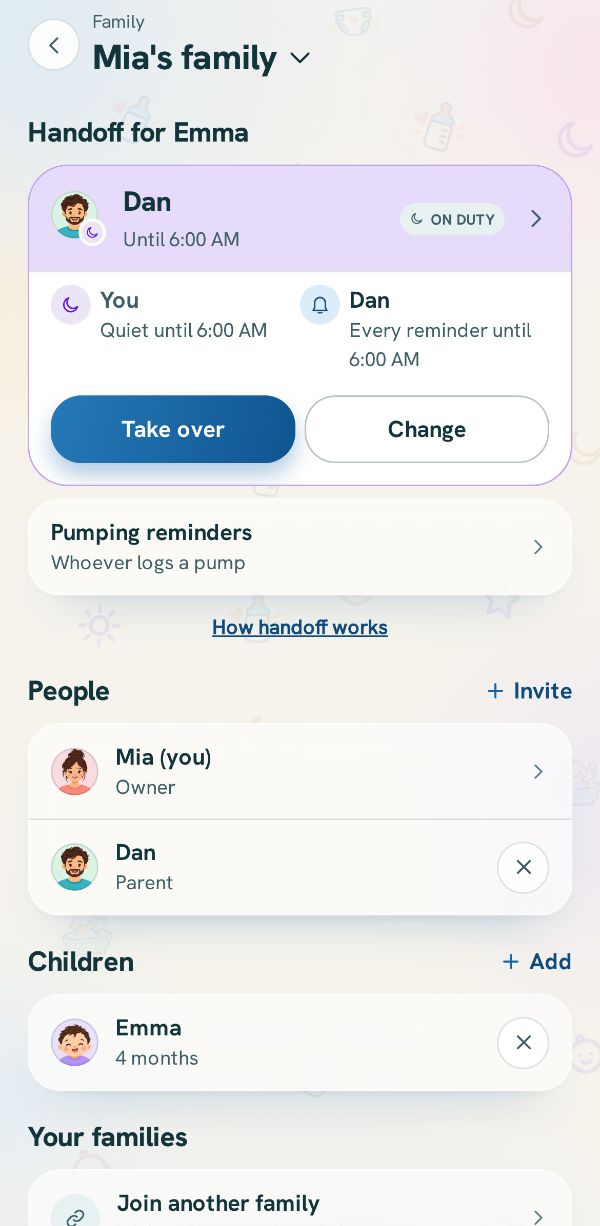
While someone is on, a row shows who and until when, and what this phone will do, such as get every reminder or stay quiet. Tap it to open Who’s on and change, hand over or end it; if someone else is on, Take over puts you on instead, and a link under the row lists everything logged since they took over, with who logged each entry.
In the evening, if nobody is on and more than one person can be, parents see Who’s on tonight?: tap a name to put that person on until the morning, or choose Same as last night, More options or Not tonight, which hides the question on this phone until morning. If you are on and this phone's notifications are off, the row offers Turn on. View only members never see this row.
Baby care
Free
Where:Today tab, the Baby care section, once you log a bath, tummy time or medicine or set one up (or turn it on in Activities & feeding).
Baby care has a card for each of bath, tummy time and medicine that your household tracks; tap a card to log. The bath card shows the day and time of the last bath, and when it is the only card it also shows your bath schedule or the time since the last one. The tummy time card shows today's minutes against your daily goal with a bar, or Set a daily goal until you set one, and with both babies in view each baby is counted on their own.
The medicine card shows, as they apply, how many of today's planned times are logged (like 1 of 3), the next reminder time, the names of up to two items, and who logged the last one when it was not you. A card's edge turns amber or red like a tile when a scheduled time is due or missed, and Edit opens What shows in Baby care, where bath is always on and the others can be switched off.
Further down Today
The lower part of Today adds up the day and lists what was logged, so anyone in the household can check it at a glance.
Today's totals
Free
Where:Today tab, under the Today heading near the bottom.
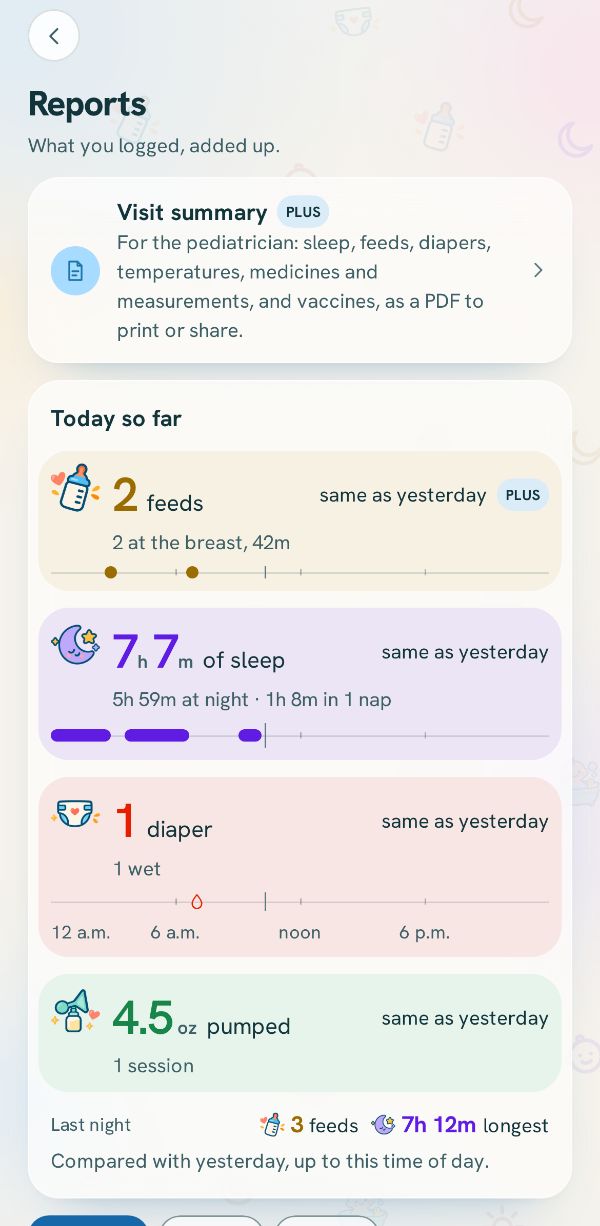
The table has three cells, Feeding, Sleep and Diapers, each with the day's total so far. Feeding shows the amount from bottles, the minutes of breastfeeding, or both on two lines with the number of feeds beside the word, depending on what you track. Under the figures is a count such as 3 bottles or 1 nap, and diapers are split into wet, dirty and mixed with small pictures. A sleep that began last night counts for the part that fell today, and a dry diaper check stays in the log but is not counted as a change. With Both at the top, each baby has a table of their own under their name. Tap Reports beside the heading for more totals.
Sleep outlook
Where:Today tab, under the totals, when sleep is tracked.
The Sleep outlook card works from your household's own sleep entries, on this phone, with a little help from what is usual at your baby's age: that counts for much less than your entries, and it helps the card notice a nap that was never logged. One soft box says what comes next and when, in large type, with one line under it for now: the sun and Awake for 28 min, or the moon and Asleep for 35 min. While a sleep is running, Asleep follows the sleep timer in hours and minutes, and the time is Usual wake-up for a nap or Morning wake-up for the night, with Tomorrow beside it when that is tomorrow. After you stop it, the time is Next nap or Bedtime. Next nap and Bedtime are a window, such as 2:15 to 2:35 PM, sized from how close the app's recent estimates came for your baby; it narrows as they get closer. In the first days it is as wide as the estimate is unsure, and narrows as your log fills in. If your baby usually falls asleep a few minutes after a feed, a feed logged late in the awake stretch moves the time toward that, once your own log shows it at least three times. Bedtime says Estimate beside it: it comes from your log, not from your routine. A single time from your log says Around, as in Around 2:05 PM. Awake in the night, the box shows Usual morning wake-up, your baby's usual morning, and it is not the next sleep. What this means opens up to three rows right away: when this stretch started, the usual length, and what the estimate rests on, plus a line that the time is an estimate from your sleep logs. It starts from the second sleep you log, using your baby's birth date and the bed time in Routine until your own log has evenings. Until then it says it is building your sleep pattern and shows how far along the log is. When the log has a long gap, it says it is waiting for a sleep update and offers Log sleep, instead of a long awake count. With Both at the top, each baby has a card of their own, with their name beside the title, worked out from that baby's own entries. Without Plus the card keeps its shape with the times hidden, and its Plus chip shows what Plus includes.
Milk stash and shopping list cards
Free
Where:Today tab, under the totals.
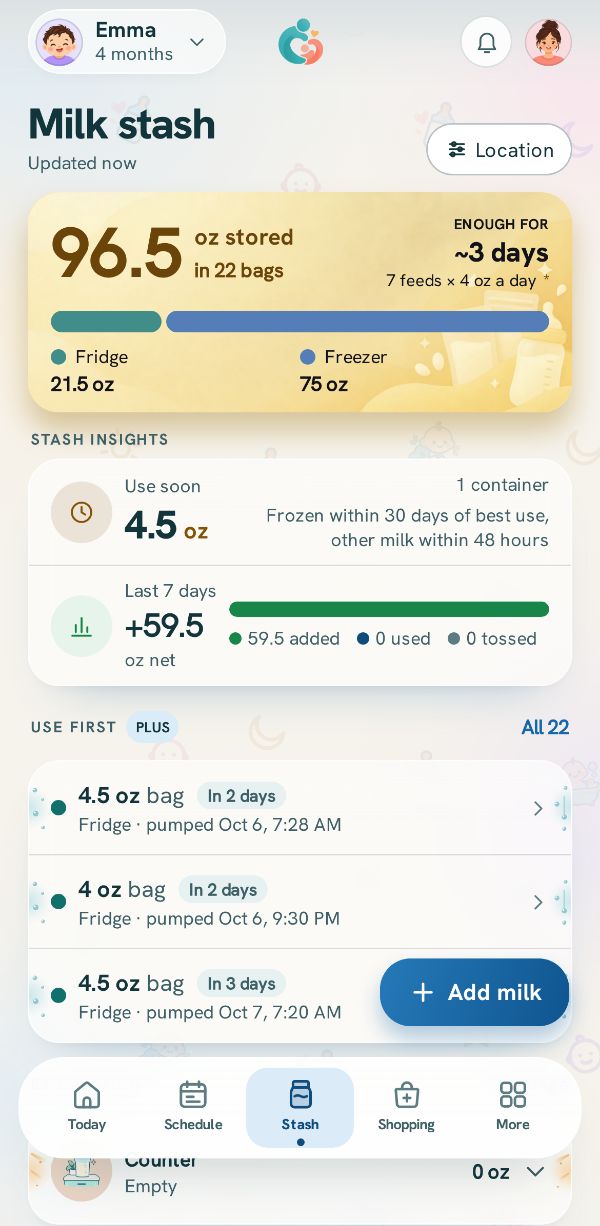
Milk stash shows the Total stored in your unit, and Shopping list shows how many things are left to buy. Tap either card to open its tab. In dark and in Night the pictures stay, drawn quieter so the words are easy to read. Light is unchanged. The stash card only appears when the milk stash is turned on; otherwise the shopping list takes the whole row. With Plus, the stash card also shows how much milk is close to its best use date.
Today's log
Free
Where:Today tab, bottom of the page.
Today's log lists the three newest entries from today, newest first, with the time, what it was and, when you view both babies, the baby's name. Tap a row to open the entry in the same sheet it was logged with; it says who added it, and you can change anything and save. A caregiver can change only their own entries. See all beside the heading opens the Activity log with every day. Before anything is logged today the card says Nothing logged yet.
The Activity log
Every entry, day by day, with a search that finds the entries holding a word.
Activity log
Free
Where:Today tab, then See all beside Today's log.
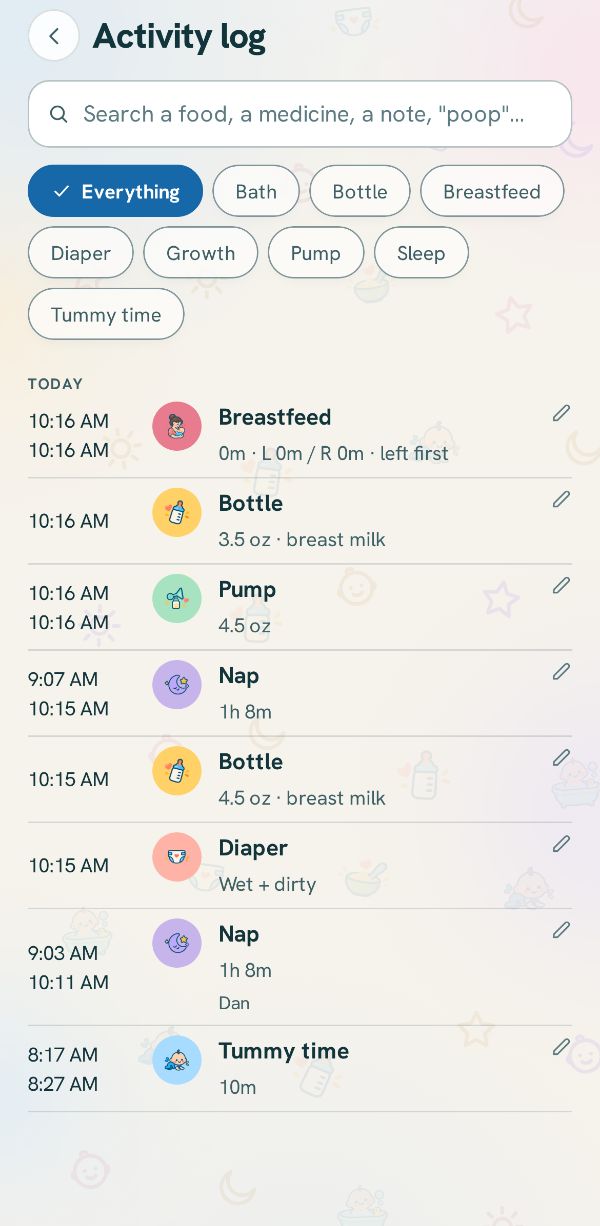
The Activity log lists every entry for the baby you are viewing, plus household entries such as pumping, newest first under Today, Yesterday and then dates. Use the chips to see Everything or one kind at a time. Tap a row to open and fix it, or swipe it left or press and hold it to delete it: either way it asks first, and the message after has Undo. A night's sleep that ended this morning is under Today with the time you woke. Rows show who logged them, a queued tag until they sync, and Private to you on a private pump session you logged.
On the free plan the log shows the last 7 days, with a card at the end counting the earlier entries and offering Find an older entry, which puts the cursor in the search so any older entry can be found and corrected, then Download all and What Plus includes; scrolling your whole history in the app is part of Plus.
Searching the log
Free
Where:Activity log, the search box at the top.
Type a word to find the entries that hold it: a food, a medicine name, words from your notes, or things you log like poop, nap, bath or formula. The list then shows only the matches, with one line on top counting them and saying when the latest was. Tap Clear to go back to every entry. Search looks only at the entries already on your phone and sends nothing anywhere. It looks through every entry on every plan, so an entry older than the free plan's 7 days can still be found and opened to correct. The newest 200 matches show first; when there are more, the line on top says so, such as Showing the newest 200 of 480, and Show 200 more at the end of the list brings the next ones.
Logging basics
How every logging sheet works, whatever you are recording.
Logging sheet
Free
Where: Today: a tile under Log, or the + button and then a tile in Quick log.
On Today, tap a tile under Log, such as Bottle or Diaper, to open its sheet; the sheet's title is the thing you are logging. The + button in the middle of the tab bar, shown on Today, opens Quick log, a grid of everything your household tracks, and tapping a tile turns it into that form. A slot on the Schedule opens the same sheet for that slot. Only what is switched on in Activities & feeding appears in Quick log.
Timing live or adding afterwards
Free
Where: The Breastfeed, Pump, Sleep and Tummy time sheets.
These sheets open on two tiles: a start tile and Already finished; the pump sheet has one switch instead, Start timer and Log finished (see Pump). The tummy time start tile starts the timer at once; Start feeding and Start sleeping open a start row first, and you start from there. Already finished opens a form for something that is over. Its times are one card, Session time: when it started and finished, with the day only when it is not today, and how long it lasted. It opens finished at the moment you opened the sheet, the activity's usual length back. Tap the card to change it. The editor opens on Started and its clock, with −30m, −1hr and −2hr under it. In a second box below it, Duration sets how long it Lasted and says when that finishes; End time gives the finish its own clock, with Now, −15m and −30m, and says how long that is. Only one clock is open at a time; tap the other time to open its clock instead. Changing the start keeps the length in Duration and keeps the finish in End time. Apply puts the times on the form, and nothing is saved until the form's own Save; Cancel, the close button or Back leave the form as it was. A time that has not come yet, or a finish before its start, is said under the editor and Apply waits. Tap a chosen tile again to close it. A sheet opened from a schedule slot that is already over opens on Already finished, starting at the slot's time.
Starting a timer late
Free
Where: Under the two tiles on a timer sheet, or the Started row above its start button.
If a feed, sleep, pumping or tummy time began before you could reach the phone, tap −5m, −15m, −30m or Custom under Started earlier? under the two tiles. Custom opens a clock to pick the time. A sleep, pumping or tummy time starts from that time at once, and a message says when, with Undo to take it back. A feed first asks which side, on the Started row above its side buttons, where Now puts the start back to the moment you tap. A start further back than 2 hours for pumping, 1 hour for tummy time, 3 hours for a feed or 15 hours for sleep is refused, with a pointer to Already finished. A start that would overlap the same baby's last entry of the same kind is moved to where that entry ended, and a line says so. For a sleep, pumping or tummy time, a chip that would start inside the last one is drawn faded; tapping it starts nothing, and a red line says when the last one ended, so you can pick a later time.
A running timer's sheet
Free
Where: Open the module's sheet for the baby whose timer runs.
Open the module's sheet for that baby while its timer runs to see the timer there. For a sleep, a feed or tummy time, the first 5 minutes offer the start chips again, so a start that was a little off can be moved; after that the sheet shows Start time and End time side by side, and End time, which reads Now, lets you pick when it really ended. A running pump asks when it ended instead, under Ended: Now is already chosen, or tap −5m, −15m, −30m or Custom. Custom opens a clock. A chip whose time would be before the pump started is faded and cannot be tapped, and a time from Custom that cannot be the end is explained under the row. The start is set before the timer begins, not from this sheet. For the card on Today and how to stop a timer, see Running timer card.
Long timer question
Free
Where: Under a running timer's card on Today or in its sheet.
Once a timer has run 2 hours of pumping, 1 hour of tummy time, 3 hours of a feed or 15 hours of sleep, a strip under its card asks whether it is still going. Tap Still going to leave it running; it asks again after the same length of time. Tap It ended to open a clock, pick when it stopped and tap Set end time; the entry is saved ending then, and for a pump the amount form saves the session ending at that time. A time before the start, or later than now, is refused. The clock reaches back 24 hours and says so; for a timer that ended on an earlier day, end it now and change its end from the Activity log.
Time chips
Free
Where: Near the top of every logging form.
Every form has one time row. Its heading says which moment you are setting, such as Feeding start time, Changed at, Woke up at, Ended at or End time, with the day and time it comes to beside it, as words, and under it Now, −15m, −30m and Custom share one row. Every sheet uses the same four, and the minus means that far back from now. On a diaper the row shows the day and the time, and there Now is the moment you save. Elsewhere Now is the moment you opened the sheet. A sheet opened from a schedule slot that is already over starts at the slot's time. On every form Custom opens only the app's clock, a wheel for the hour and the minute that you turn with a finger; a time later than the current time is read as the night before, so 11:40 PM picked just after midnight is last night. So a new entry's time reaches back 24 hours, and the clock says so: for an earlier day, save the entry, then open it from the Activity log and change its day. When you correct an entry, a picked time lands on the day nearest the entry's own time. Growth asks for a date instead, under Measured on.
Typing a number
Free
Where: Any number on a logging form.
Amounts and lengths such as In the bottle or Slept for have a ruler: drag it, or tap the minus and plus buttons where they show. Other numbers, such as Left in the bottle or the pump's Left and Right, have round minus and plus buttons; hold one down and it keeps going, faster the longer you hold. Tap any number to type it: on a ruler it turns into a field in place, and elsewhere a small box opens with Set and Cancel and a line giving the allowed range. Only numbers can be typed. A length of an hour or more shows as hours and minutes, but is typed in minutes.
Note
Free
Where: The Note field on a form, or Add note.
The bottle, bath and temperature forms have a Note field. A diaper keeps its note under Color, rash & note, and a feed or a sleep entered with Already finished, a pump session entered with Log finished and a medicine have Add note, which opens the field when you tap it. On the other sheets you can add a note when you correct the entry later. A note is kept exactly as you type it, up to 2,000 characters, and the app reads nothing into it. A word from a note can be found with the search in the Activity log.
Saving and Undo
Free
Where: The save button at the foot of each logging form.
Each form ends in a save button that says what it saves, such as Save bottle or Save Vitamin D, and on a longer form it stays at the foot of the sheet while you scroll. When the entry is saved, the button turns into a check and the sheet closes. A message at the bottom says what was saved, with Undo at its right for about five seconds; tapping it removes the entry. The line under the save button says who the entry is logged as and that it syncs to the household or, with no signal, that it is saved on this phone and queued for sync. A timer's start has no Undo.
Editing an entry
Free
Where: Tap the entry in Today's log on Today, or in the Activity log (tap All).
Tap any entry in Today's log or the Activity log to correct it. It opens in the same sheet that logged it, filled in and titled Edit with the module's name; a timed entry opens straight on its finished form, and there is no Logging for row because an entry belongs to one baby. Change what you need and save: nothing pops up, because the row already shows the change, and if nothing changed the sheet simply closes. A parent or the owner can change any entry and a caregiver only their own; on someone else's entry a caregiver sees who can change it, and Save is off. Readings in the temperature and growth histories open the same way.
Deleting an entry
Free
Where:Delete entry at the foot of an entry's sheet, or swipe a row left in Today's log or the Activity log.
Open the entry and tap Delete entry, or swipe its row left in Today's log or the Activity log and tap Delete. The swipe first asks Delete this log? with the entry named; Cancel leaves it alone. In the Activity log you can also press and hold a row, which asks the same question. Every delete shows Entry deleted with Undo, which brings the entry back. Deleting a bottle that came from the milk stash puts its milk back in the stash, and a caregiver can delete only their own entries.
Twins and siblings
Free
Where: The Logging for row at the top of a sheet, with two or more babies.
With two or more babies, most sheets have a Logging for row: a chip for each baby and Both (or All with the number, for three or more). Pick one baby, or Both to give each baby an entry of their own; a line under the row names who gets one. The row starts on the baby chosen at the top of Today, or on a schedule slot's own baby; when Today shows both babies at once it starts on Both, except a medicine or breastfeed sheet, which starts on the baby whose turn is next. Temperature and growth have no Both, and pumping has no row because it belongs to the parent, not a baby. With two babies, the message after saving for one offers a plus sign and the other baby's name to log the same for them, and Undo both then takes back the pair.
Units (oz and mL)
Free
Where:More, then Activities & feeding, Milk units under Feeding.
Bottles, pumping and the milk stash use one milk unit for the whole household: set Milk units to oz or mL under Feeding on Activities & feeding, or during setup. Only a parent or the owner can change it, it shows the same on every phone in the household, and every milk amount follows it at once. Amounts move in steps of a quarter ounce or 5 mL, and 1,000 mL or more reads in liters.
The temperature sheet has its own °F and °C choice and the growth sheet an in and cm switch for length and head; your phone remembers the last one you saved with. Weight is entered in pounds and ounces.
Breastfeed
Time a feed side by side, or add one that is already over.
Breastfeeding timer
Free
Where:Breastfeed sheet, Start feeding.
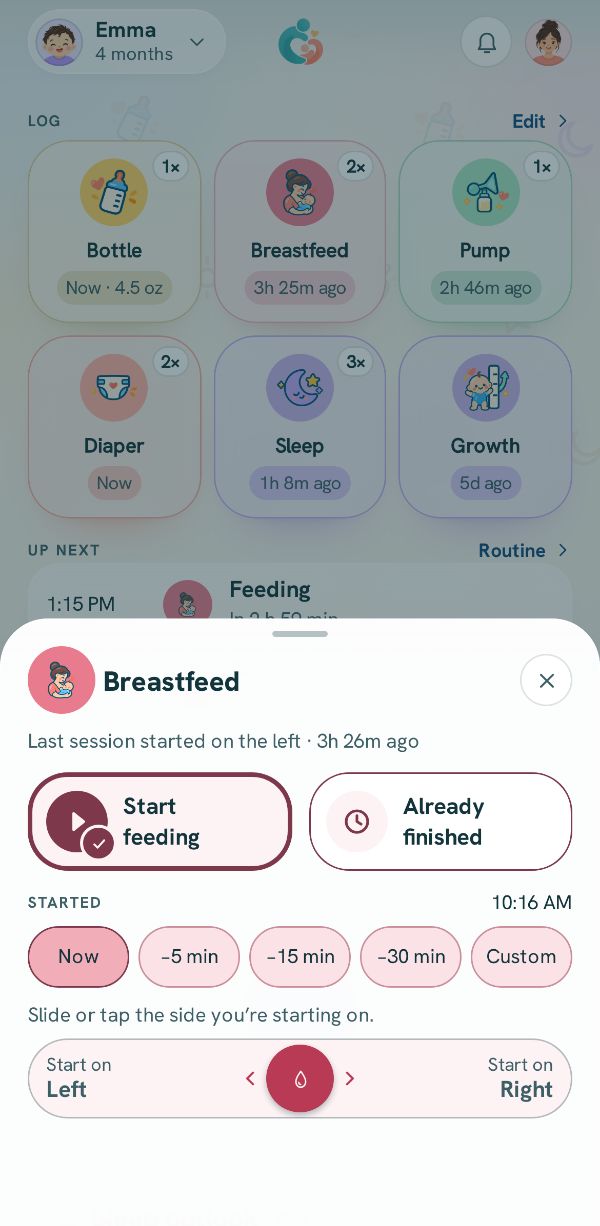
Tap Start feeding, then slide the button in the middle toward Start on left or Start on right, or tap either one, to start the feed on that side. A line at the top of the sheet says which side the last feed started on and how long ago. On the running card, tap Switch to right or Switch to left to change sides, and the round pause button beside it to pause and resume. When the feed is over, press and hold Finish until the ring closes; the entry is saved with the minutes on each side.
Breastfeed already over
Free
Where:Breastfeed sheet, Already finished.
Tap Already finished and set the minutes for Left and Right, up to 120 each, on their two cards. The Session time card follows the sides' minutes until you change it in its editor; changing how long the feed lasted there moves only its times, never the side minutes, as a feed with pauses is longer than its minutes at the breast. When both sides have minutes, First side lets you pick Left or Right, or leave both off if you are not sure. Tap Save feed, which stays off until at least one side has minutes. Correcting a feed shows its Session time card, the only place to change its times. Changing a side's minutes never moves a feed you timed.
Tandem feed
Free
Where:Breastfeed sheet with Both chosen under Logging for.
With two babies, choose Both on the Logging for row to log a tandem feed, one baby on each side. Timing it, the sheet names which baby is on which side; tap Swap sides if they are the other way round, then Start tandem to start a timer for each baby. Entering it afterwards, a Tandem feed card says each baby gets the minutes on their own side, and Save tandem feed saves it; both sides need minutes. With three or more babies chosen together, pick one baby to time a feed.
Bottle
Record what was in the bottle, what kind it was, and what was left.
Bottle entry
Free
Where:Bottle sheet.
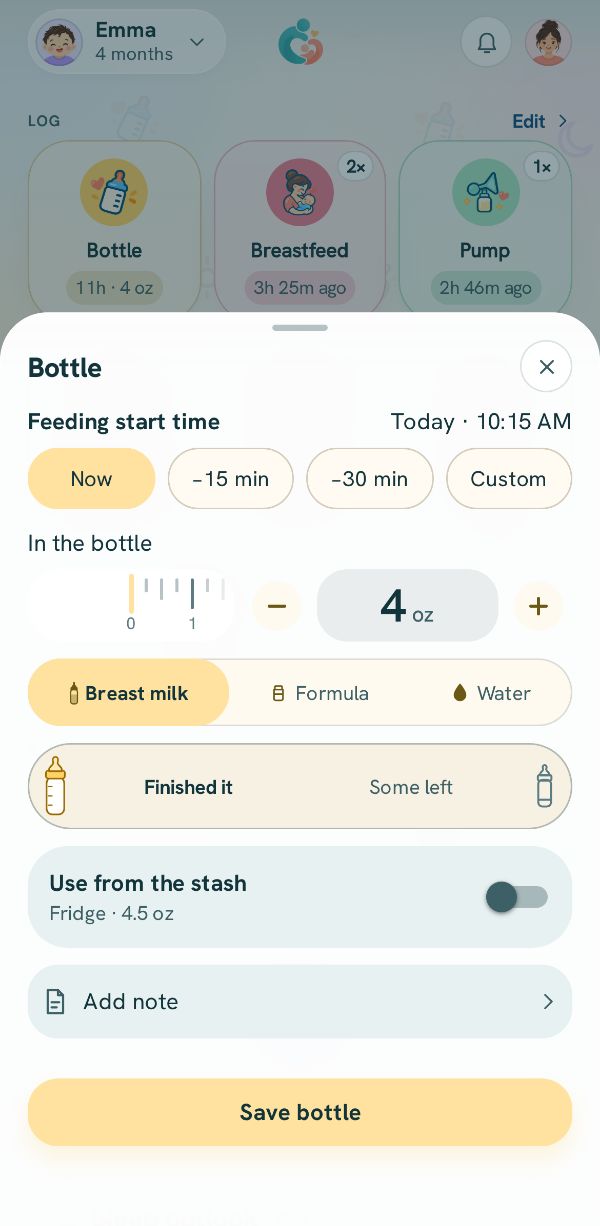
Set In the bottle to what you made up, then pick Breast milk, Formula or Water; the sheet opens on your last bottle of milk's size and kind, never on water. If the baby finished, leave Finished it; if not, tap Some left and set Left in the bottle, and the line under it shows how much the baby took. The time row, Feeding start time, is when the feed began. Add a Note if you like and tap Save bottle.
With Both chosen, a button under the amount gives each baby their own bottle, and Same amount for both puts it back to one. Correcting a bottle later also offers Mixed and Other. To take breast milk out of the milk stash as you log, see Use from the stash, in the milk stash part of this manual.
Pump
Time a pumping session or add one that is over, then say what its milk is for.
Pumping timer
Free
Where:Pump sheet, Start timer.
The sheet opens on two tiles. Tap Start pumping and the timer starts at once; a message says when it started, with Undo to take it back. Under the tiles, a quiet line shows today's total and when the last session was.
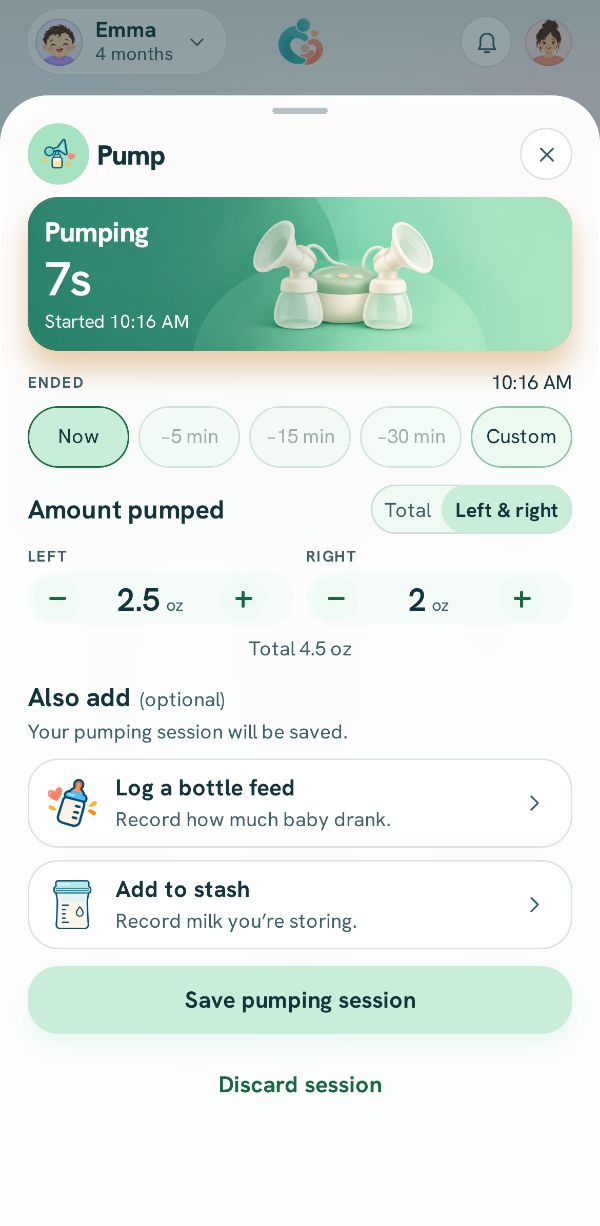
To finish, press and hold Stop on the card on Today, or the same button in the pump sheet; the clock freezes and the amount form shows. If the timer ran on after the session, set when it ended before you save. Under Ended, Now is already chosen, or tap −5m, −15m, −30m or Custom, which opens a clock. The session is saved ending then. The amount starts on your last session. Under Amount pumped, pick Total for one number or Left & right for each side. Your first pump opens on Total, and after that each pump opens the way you saved the last one. Save pumping session saves the session alone. Under Also add, Log a bottle feed or Add to stash opens the next page to feed or store the milk; nothing is saved until that page's last button, and the row stays checked when you come back. Pump only there comes back here with no row checked, and Back comes back with everything you set. Discard session drops it, and closing the sheet without saving lets the timer run on.
Pump session already over
Free
Where:Pump sheet, Log finished.
Tap Log finished. Set Amount pumped first, as one Total or Left & right. Under it, the Session time card shows when the session started and finished and how long it lasted, up to 2 hours; tap it to change them. The form opens on your last session's amount and length. Tap Save pumping session, which saves even with no amount entered. To log more with it, tap Log a bottle feed or Add to stash under Also add, which opens the next page at once. Log a bottle feed is there only when you use the bottle, and Add to stash only when you use the milk stash. Nothing is saved until the last button on that page, and Edit or Pump only there comes back to this one with everything you set.
Diaper
Record what was in a diaper and when it was changed.
Diaper entry
Free
Where:Diaper sheet.
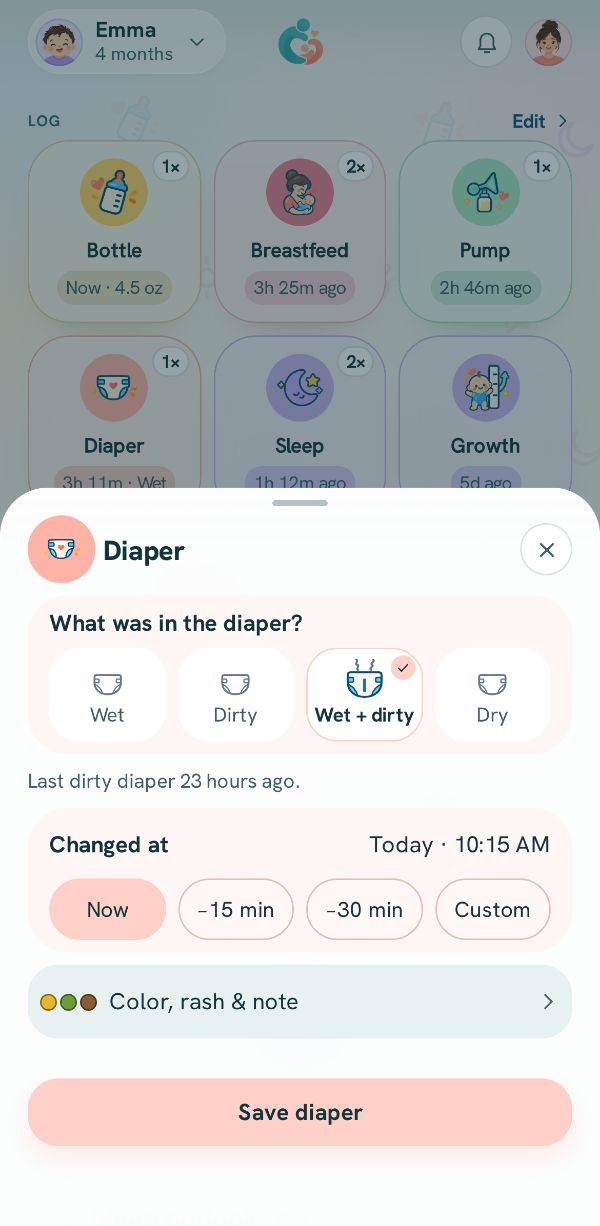
Tap what was in it: Wet, Dirty, Wet + dirty or Dry; the chosen tile has a check, and the sheet starts on the kind of the last wet or dirty diaper you logged, never on Dry. Set Changed at if it was earlier. If you like, tap Color, rash & note to pick a color (Yellow, Green, Brown, Black or Red; tap it again to clear it), turn on Rash noted, or add a Note. Closed again, the row says what is set. Tap Save diaper; the message names the kind it saved. The colors and the rash switch record what you saw, and the app reads nothing into them.
Last dirty diaper
Free
Where:Diaper sheet, under the wet, dirty, wet and dirty, and dry choice.
Once you have logged at least three diapers for a baby across two days, a line under the choice says how long ago the last dirty diaper was logged, counting Wet + dirty as dirty. If none has been logged, it says so. It is a plain count of time from your own entries, with no color and no alert. The line goes away when no diaper at all has been logged for a day and a half, and comes back when you log again.
Sleep
Time a sleep as it happens, or add one after the baby wakes.
Sleep timer
Free
Where:Sleep sheet, Start sleeping.
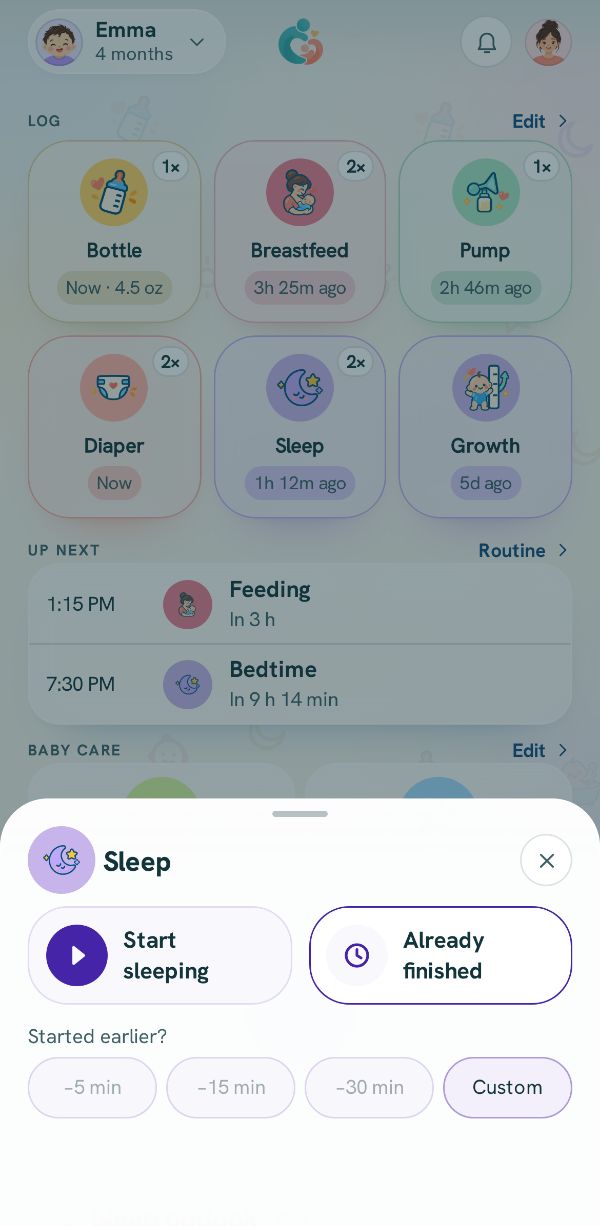
Tap Start sleeping, choose when it started on the Started row if it was not just now, then tap the start button under it. The timer runs on Today, and with Both chosen each baby gets a timer of their own. When the baby wakes, press and hold Woke up until the ring closes, and the sleep is saved. The message after saving says whether it was filed as a nap or a night.
Sleep already over
Free
Where:Sleep sheet, Already finished.
Tap Already finished. Nap or Night is picked from your household's times, and you can tap the other. The Session time card shows when the baby fell asleep and woke up and how long they slept. Tap it to change them: Fell asleep has its clock and chips, and Slept for goes in 5 minute steps up to 16 hours, or give Woke up its own clock with End time. Tap Add note for a note, then Save sleep. Correcting a sleep shows the same card, the only place to change its times.
Nap or night
Free
Where: Set on the Schedule tab under Routine (Wakes and Bedtime).
The sleep sheet never asks whether it is a nap. A sleep that starts between the household's Wakes and Bedtime times and is over by bedtime is saved as a nap. One that starts later, or is still going past bedtime, is saved as a night. Both times are set on the Schedule tab under Routine. To change one sleep, tap it in Today's log and pick Nap or Night.
Solids
Record a meal, each food in it, and how it went.
Meal and foods
Free
Where:Solids sheet.
The meal picture starts on the meal that matches the time row, such as Lunch; tap another part of it to pick Breakfast, Lunch, Snack or Dinner. Under What they ate, type one food per line, and an amount beside it if you counted one, as a number or a fraction like 1/2. Tap the unit beside the amount to choose pieces, tsp, tbsp, oz, g or mL. Foods you have logged before appear as you type and under Recent, and Add another food adds a line, up to 20. A food the baby has not had before shows First time; with Both chosen, only when neither baby has had it.
How a meal went
Free
Where:Solids sheet, under the foods.
Once a food is named, How did it go? offers Loved it, Liked it, Not sure and Nope for the meal; tap the chosen one again to clear it. With more than one food, Rate each food lets you answer for each one, and Same for all goes back to one answer. Tap Add note to write anything else in your own words; it is kept exactly as you write it, with no allergy assessment. Then tap Save solids.
Tummy time and Playtime
Time tummy time, add a finished session, and keep a daily goal.
Tummy time timer
Free
Where:Tummy time sheet (called Playtime once switched).
Tap the start tile and the timer starts at once; a message says when it started, with Undo to take it back. When it ends, press and hold Stop on its card. For a session that is over, tap Already finished; the form opens on how long the last session lasted. Tap the Session time card to set when it started and How long it was (up to 2 hours a session), then save. Correcting a session changes its times on the same card. If the same baby has a sleep running, the sheet first asks whether to end it: End sleep ends the sleep where tummy time began, and Cancel saves nothing. Starting a sleep while tummy time runs asks the same the other way round.
Daily tummy time goal
Free
Where:Tummy time sheet, Daily goal.
Under Daily goal the sheet shows today's minutes so far, including a timer that is running. Tap Set a daily goal and pick 5, 15 or 30 minutes or an hour, or 1, 2 or 3 hours for Playtime; once set, the row reads Change daily goal, and tapping the chosen amount again turns the goal off. The bar shows your minutes against your own number, with one bar per baby when logging for Both. Today's entries are listed in the row under it, which also opens when you drag the sheet up.
Playtime
Free
Where:More, then Activities & feeding, Today & playtime, Use Playtime.
When tummy time no longer fits, a parent or the owner can open Today & playtime on Activities & feeding and turn on Use Playtime. Tummy time is then called Playtime everywhere, with the same timer, every past entry kept, and its own daily goal you can change; About playtime goals says what the goal is and where it comes from. Turn the switch off any time and the tummy time goal comes back. The app never makes this switch for you.
Bath
Record a bath and whether the hair was washed.
Bath entry
Free
Where:Bath sheet.
A line at the top says when the last bath was, in the same words as the Bath card on Today, such as Last bath: last Tuesday at 6:25 PM. Tap Hair washed or Not washed; the sheet starts on last time's answer. Set Bath time if it was earlier, add a Note if you like, then tap Save bath.
Medicine
Record what you gave or applied, from your household's own list.
Medicine entry
Free
Where:Medicine sheet.
Under What did you give or apply?, tap each item you gave; you can pick several at once. Each is recorded with the usual amount you typed for it in your list; to record another amount this time only, tap Different amount just this time and type it, or Keep the usual amounts to go back. Set Given at if it was earlier, then tap the button, which names what you picked, such as Save Vitamin D (it reads Save medicine until you pick something). The sheet says that only what you enter is recorded and the app never calculates or suggests a dose. Items, their usual amounts and reminders are added under Manage medicine & creams at the foot of the list; add one there and the sheet comes back with it ticked, at the time and for the baby you had chosen.
Who gave the last dose
Free
Where:Medicine sheet, the line under each item.
Under each item's name, a line shows its usual amount, how many have been logged today (against its reminders, when it has any), and how long ago the last one was logged and by whom: by you, or by the name of the person who logged it. With more than one baby on the sheet, each baby's count is shown separately and the line says which baby the last one was for. The line follows the Logging for row, so it always describes the babies you are logging for.
Temperature
Record a temperature reading exactly as you took it, and see every reading again.
Temperature reading
Free
Where:Temperature sheet.
Set the reading with the minus and plus buttons in tenths of a degree, or tap the number to type it. Choose °F or °C beside the thermometer picture; switching converts the number shown. Pick how it was taken: Armpit, Forehead, Ear or Rectal; the sheet starts on how this baby's last reading was taken. Set Taken at, add a Note about anything else you noticed, then tap Save temperature. The sheet notes that the reading is recorded as measured, with no interpretation.
Temperature reading history
Free
Where: In the temperature form, tap Reading history at the bottom.
The card counts the readings and the dates they cover, and from two readings on shows a chart captioned One dot per reading, placed by the time you took it. Nothing joins them.How they were taken counts the methods, such as armpit or forehead. Below, readings are grouped by day, newest first, each with its time, its method, and how long after the reading before it when the two were close together. The app gives no average and no highest or lowest reading, and no reading is colored differently from another. Tap a reading to change or delete it, tap Show older readings for more, and tap New reading to go back to the form with what you had typed still there.
Growth
Record weight, length and head size as you measured them, and see every measurement again.
Growth measurement
Free
Where:Growth sheet.
Set the day under Measured on; growth takes a date, not a time. Under What did you measure?, turn on only what you measured: Weight, Length and Head each start off, and open on this baby's last value. Weight is set in pounds and ounces side by side, and the ounces roll over into the next pound; length and head share one in or cm switch. Tap Save measurement, which needs at least one measurement and a weight above zero. The sheet notes there is no percentile, curve or comparison.
Measurement history
Free
Where: In the growth form, tap Measurement history at the bottom.
Pick Weight, Length or Head at the top when you have measured more than one. The card shows the latest measurement and its date, the change between the first and the latest with the same change per 30 days, and a chart once there are two. Below it every measurement is listed newest first with its change since the one before, and the oldest one says First one logged. Tap a row to change or delete that entry, tap Show older measurements for more, and tap New measurement to go back to the form. It shows the baby picked in the form.
Health note
Write down something you noticed, in your own words, and see what was logged before it.
Health note
Free
Where: The + button, Health note. It has no tile on Today.
Set Started at to when it began; a time later than now is taken as yesterday, and Day it started moves it to another day. Under What you noticed, tap any of Rash, Swelling, Spit up, Loose diaper, Cough, Fussy or Other, as many as fit, and write it In your own words: a chip or a few words is enough. Choose Still going or It stopped; when it stopped, set Day it stopped and Stopped at. A note is about one baby, so with two babies the Logging for row has no Both. The chips name what you saw; the app records them as you tapped them and never reads anything into them. Temperature has its own sheet.
Logged before this
Free
Where: Straight after saving a health note, and whenever you open one from the Log or Today.
Choose 24, 48 or 72 hours at the top; it opens on 48. Every entry logged for that baby in that time is listed by day, oldest first, ending where the note begins: meals with their foods, medicines with the amount you typed, bottles and breastfeeds, sleep, temperatures and diapers. A food logged for the first time in that window says first time logged. Nothing is ranked or picked out, and nothing says what caused what. Tap an entry to open it, Change this note to correct the note, or Done. Search finds a note by its words or its chips, and the Visit summary carries every note with the 48 hours before it.
The Schedule tab
See today's plan slot by slot, log or skip each one, and look ahead to the next day.
Schedule tab
Free
Where: Tap Schedule in the tab bar.
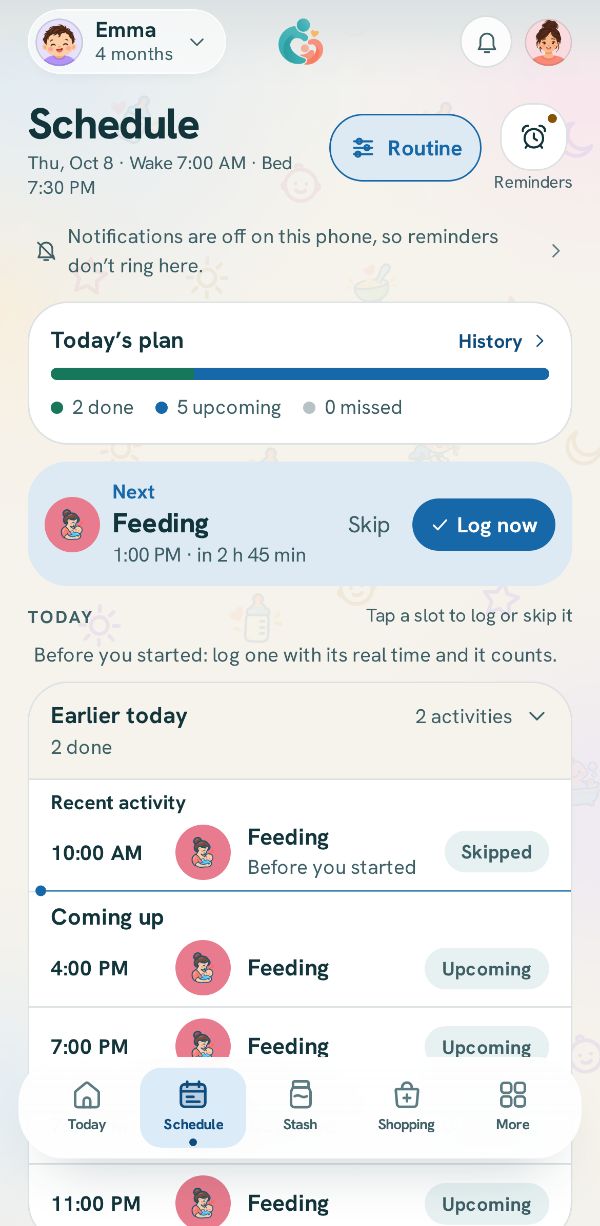
The top shows the date with Wake and Bed times, a Routine button for changing the routine and a Reminders button for your notifications. Under them are Today’s plan, the next activity to do and the Today list of every activity since midnight. A folded Next day card and a Vaccines card sit below the day. With no routine yet the tab says Nothing scheduled yet, and a parent or the owner can tap Open Routine to set one up. If a reminder is on but notifications are off for the app on this phone, a line under the top reads Notifications are off on this phone, so reminders don’t ring here. and the Reminders button carries a dot; tap the line to open Reminders and turn them on. Both go as soon as notifications are on.
Next slot card
Free
Where:Schedule tab, near the top, under the progress card.
The card is captioned Due now when a slot's time has come, and when the last slot of an every few hours schedule was not logged, nothing has been logged since, and the next one is still today. It is captioned Next when the next slot is still ahead, with its time and how long until it. Log now and Skip sit together on the right of the card, Log now above Skip. Log now opens that activity's usual log sheet with the slot attached. Skip asks first: choose Skip again to record it as skipped, or Keep it to leave it. The message that follows has Undo for a few seconds, which puts the slot back on the plan. If a logged entry moved the slot, a quiet line says Moved from the earlier time. A line under the card names the slot after this one and when it falls.
Today list and its folds
Free
Where:Schedule tab, under Today.
Every activity since midnight is listed with its time, its name and a status chip, and the hint beside the heading says Tap a slot to log or skip it. Settled activities more than two hours behind you fold under Earlier today, with the activity count on the first line and counts such as done and missed on the second. Recent settled rows that stay open sit under Recent activity, separate from that fold. Future rows sit under Coming up. Activities from 8 PM on, or beyond the next six, fold under Tonight. Tonight says how many activities, once. Open it and the first and last times sit in that heading, with bedtime beside them. A thin line shows where the clock falls among the rows. With more than one baby in view, each row shows whose activity it is. Entries logged at other times than the planned ones are counted in a note under the list, such as 2 entries logged at other times, and never count as a miss.
Activity status: done, missed, skipped
Free
Where:Schedule tab, on each row of the Today list.
Done means an entry answered the slot, with On time under it when it was on time, or the due time under it when it was late. Missed means nothing was recorded before the slot's window closed: the app notes the absence of a record and does not claim care did not happen. On an every few hours schedule the next slot today then says Due now, until you log one or skip one. Skipped means someone chose to skip it, which is not the same as missed and leaves the next slot on its clock. Due now marks a slot in its due window. Next is only the nearest upcoming activity; other future ones say Upcoming. On an every few hours schedule a logged entry moves the slots after it, and a moved row says Moved from the earlier time.
Logging from a slot
Free
Where:Schedule tab: tap a slot row, or Log now on the next slot card.
The sheet is the same one you reach from the plus button in the tab bar, and the entry you save is matched to the slot. Its foot names the slot's time and status, and while the slot is still open it offers Skip this slot, with the note A skipped slot is recorded as skipped, not missed, and nobody gets nagged. It asks the same question as the Skip on the next activity card, and the message that follows has Undo. If you skip a slot and then do it after all, log it: the entry answers the slot, which then shows as done. For a feeding slot, when you track both bottle and breastfeeding, a switch at the top picks which kind it was. A slot that is already over, such as a missed one, opens with its own time filled in and the note Set to the slot’s time. Change it to when it really happened. A medicine or a bath logged later on the same day still counts for that day's slot.
Next day card
Free
Where:Schedule tab, under the Today list.
The card is titled Next day and starts folded, with how many activities the next day has. Open it and the span of their times sits in the heading, without repeating the count. Tap it to open the list. Slots less than four hours away keep their Next chip and can be logged early from their row; later ones are plain lines of the plan with nothing to tap. Nothing on a day that has not begun can show as missed. A vaccine visit you planned for that day is named in the heading when the list is open, and heads the list.
Schedule history
Free
Where:Schedule tab, tap History on the progress card.
Today’s plan at the top of the tab counts today's done, upcoming and missed activities, and its History link opens the days before, newest first. Each day shows its share done (done out of done and missed), a bar and the counts; tap a day to see each kind of activity on its own line. A day with no slots says Nothing scheduled. The free plan shows the last 7 days, with up to three earlier days drawn grayed and without numbers behind See every day with Plus; Plus shows 30 days and can load more, back to your first day. A line above the days says Each day is counted against your routine as it is now, so a change to a time or a rhythm counts for the days before it too.
Routine: the times you set
Set how often each thing happens, the baby's day and the nights, for the whole household.
Routine
Free
Where:Schedule tab, tap Routine at the top; or tap Routine beside Up next on Today.
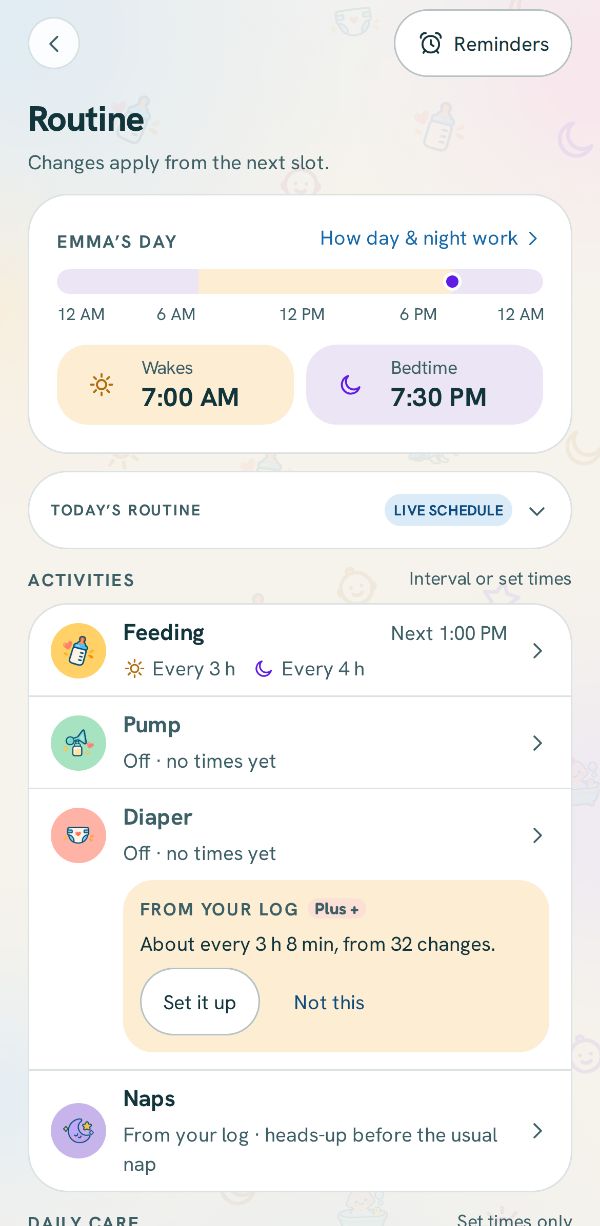
The page is titled Routine and is shared by the household: changes apply from the next slot, and today's done and missed slots stay as they are. It holds the baby's day card, the day wheel, an Activities card with a row each for Feeding, Pump, Diaper, Solids and Naps, and a Daily care card for medicines, the bath and tummy time.
Every activity keeps its row, even one your household does not use. An activity that is switched off says Turned off. Tap to turn it on. Tap it and Activities & feeding opens with that tile marked in a darker box with an accent edge, so you can turn it on there; a caregiver's row only says Turned off for your family. An activity whose switch is on but waits for your baby says Starts when your baby arrives. and opens nothing until then.
Each row states its setting in a sentence and, on the right, the next time or today's count; tap a row to change it. A caregiver can read the page but not change it, and sees Only a parent or the owner can change the routine. Folded at the foot, How slots move and what counts as missed explains how intervals count and when a slot is recorded as missed.
Wake time and bedtime
Free
Where:Routine, the day card at the top.
The card, named for your baby's day, draws a 24-hour strip with the day as a light band, the night around it and dots for today's set times. Tap Wakes or Bedtime to pick a new time. How day & night work explains the strip: sleep inside the day counts as a nap and sleep outside it as night sleep, and any activity that is different at night runs between these two times. When you track sleep, the bed time is also the daily Bedtime slot, so moving it moves that slot; moving either time also moves the night on every activity that is different at night. The times are shared by the household, and only a parent or the owner can change them.
Activity sheet
Free
Where:Routine, tap a row under Activities or Daily care.
A switch at the top offers the ways that activity can run: Every few hours, At set times or Off for feeding and pumping; Every few hours or Off for diapers; At set times or Off for solids; Every few days or Off for the bath; and Daily goal, At set times or Off for tummy time. Diapers and tummy time never ring a reminder, and their sheet says so: No reminder rings for this. Its times show on Today and the Schedule. As you change it, the preview shows Next and Then, the next few times the setting would produce, and Full preview opens the whole list, overnight included. Save changes stays dimmed until something has changed, and the note under it says Applies from the next planned time.Off means Nothing planned and no reminders. What you log still counts. When a save takes times away, its message carries Undo.
Every few hours, by day and by night
Free
Where:Routine, tap Feeding, Pump or Diaper, then Every few hours.
In the yellow Day card, pick a gap from the chips, 2h, 3h or 4h, or tap Custom at the end of the row for any other gap, such as 2 h 30 m or 1 h 30 m; it steps by 15 minutes from 30 minutes to 12 hours. A gap set before without a chip of its own opens in Custom. The next slot always counts from your last entry, not from the slot it was meant to fill, so a feed logged late moves the ones after it. In the purple Night card, turn on Different at night to give the stretch between bedtime and waking a gap of its own: Every few hours with a longer gap (three to five hours, or Custom), Once a night for one time overnight, shown on a card with its time and Change, or None for nothing overnight; the list then says None beside the moon. With it off, the card says the night follows the day, as in Every 3h · Same as day. On the list, a sun sits beside the daytime gap and a moon beside the night gap, for example Every 3 h and Every 4 h. The night follows the wake and bed times on the day card and moves when they do.
At set times
Free
Where:Routine, tap an activity row, then At set times (Set times for naps).
Under Times, tap Add time to pick a clock time, and tap the cross on a time to remove it. Under Days, tap the day letters to keep only some weekdays, or Every day for all of them. The Show on the day strip switch decides whether these times appear as dots on the day card, on this phone only. Saving with no times asks you to Add at least one time, or turn it off. Set times replace an every-few-hours schedule for that activity, from the next slot on.
Meal times for solids
Free
Where:Routine, tap Solids, then At set times.
Instead of a list of times, solids show a Meals table with Breakfast, Lunch, Snack and Dinner rows, each with a time button and an on or off switch. Tap a time to change it, and use Add a snack for a second snack row, which has its own remove button. Each meal that is on becomes a slot named for that meal, so the list and the reminder use the meal's name. Times saved before meals had names stay under Other times until you remove them. With every meal off, Save asks you to Turn on at least one meal, or turn it off.
Naps: from your log or set times
Free
Where:Routine, tap Naps.
The Naps sheet offers From your log or Set times, and the row on Routine says which is chosen. Set times gives reminders at the times you choose, on every plan. With Plus, From your log sends a heads-up about 15 minutes before the window your next nap would fall in, worked out on this phone from the sleeps you log, once two sleeps are logged, and only between 8 AM and 9 PM. The heads-up says what it rests on: how many sleeps you logged, and, while the log is new, what is usual at your baby's age. With twins or more, each baby gets their own heads-up, named, worked out from that baby's own sleeps. Without Plus that choice carries the Plus chip, and naps are simply Logged as they happen. Set nap times always win over the heads-up, so you never get both. For no nap reminders on your phone, set Sleep and naps to Off in Reminders.
Daily care: medicines, bath and tummy time
Free
Where:Routine, under Daily care.
Each medicine or cream on your list has its own row; tap it to set its reminder times or to remove it. Add a medicine, cream or care task opens the medicines page, where a new item and its amount are entered. Bath runs Every few days: choose Daily, Every 2 days, Every 3 days or Weekly, or pick weekdays under Days, with a time under At. Tummy time can have a Daily goal in minutes, which makes no slots and no reminders, or set times. A medicine or a bath logged any time that day still counts for that day's slot.
Day wheel
Free
Where:Routine, the Today’s routine card under the day card.
The card is folded until you tap it, wears a Live schedule badge, and stays open or folded on this phone as you left it. The ring runs from Wake to Bed time, with the length of the day in the middle over Wake to bedtime and a hand at the current time. Switch between Planned, the whole day as laid out, and How it went, which keeps only what was done and what is still to come and counts what it left off. A parent or the owner can tap a stop to open that activity's sheet, and when a stop holds several things, a Which one? sheet asks which to open. Edit times scrolls down to the activity rows.
Saved plans
Free
Where:Routine, the Saved plans row near the foot of the page.
The sheet lists your plans with the one marked In use now at the top, each showing how many times it holds and since when. Use this plan asks first, naming the plan you are on, and then switches everyone's phones to that plan from today; the message after has Undo. Save a new plan saves the routine you are on now, with every time in it, under the name you type. Rename changes a name, and Delete removes a plan that is neither in use nor your only one. Every household keeps one plan it can rename and edit freely. Making a second plan, with Save a new plan or Duplicate, needs Plus, and both show the Plus chip until then. Switching deletes nothing: the plan you leave keeps its times, and you can switch back.
Schedule from your log
Compare the routine with your own recent entries, and take only the changes you choose.
Schedule from your log
Where:Routine, the Schedule from your log row; or See it on the Your week, as a schedule card on the Schedule tab.
The page lays your last 7 days beside your routine: rows such as Your day, Feeding, Pumping and Solids show Set now and From your week. When the week would change a row, From your week and the time sit in a band, and the count of days or gaps sits under that band. A row that stays as it is has no band. Rows that would change carry a switch, all on to start, and Use this schedule writes the ones left on, with Undo in the message that follows. Back leaves the page without writing. Naps and nights are not set here, and Medicines, diapers, bath, tummy time and vaccines stay as they are.
It needs a week of entries and one baby picked; without Plus the times are dashed out and Use this schedule carries a lock. Once your week would change something, a parent or the owner also sees the Your week, as a schedule card on the Schedule tab, in the color you picked. A calendar sits beside the name, and Plus sits at the end of that line. The sentence uses the full width. Not now and See it sit side by side under the sentence, each the same width, and See it has an arrow. See it opens the page. Not now hides the card on this phone for two weeks. On that page, day and night stay on one line, and the switch sits on the title. A row that would not change shows what is set now.
From your log notes
Free
Where:Routine, under the row the note is about; a note about the bed time sits under the day card.
On an activity with a day or night interval, such as Feeding or Pump, the notes sit inside that activity's card: under From your log, a Day row and a Night row each show the current setting, an arrow and the suggested interval, with the middle of your own entries under it as Usually. Use sets that one interval and changes nothing else, and that row then shows its new setting. The × hides that one suggestion on this phone, and the message Hidden on this phone offers Undo. How this is worked out shows how many gaps each number comes from. Other notes, such as a set time, give the setting and what your entries show, with one button that names the change and Not this. Notes appear only for a parent or the owner and, in a household with more than one baby, only once one baby is picked. Under Naps, the button Use a heads-up instead switches naps to the heads-up. The notes are part of Plus, and the Plus chip sits beside From your log: without Plus a note shows no numbers and no buttons, and tapping it shows what Plus includes. The exact thresholds are under How slots move and what counts as missed.
Vaccines
Keep the vaccine record and the visits you plan beside the day, against the published schedule it names.
Vaccines card and planned visits
Free
Where:Schedule tab, at the bottom, while Vaccines is on in What you track; a planned visit heads the Today list or the Next day card.
The Vaccines card names the next visit, how many doses are recorded out of those the published schedule lists, and the schedule's source; tap it to open the Vaccines page. Its chip turns red in the week before a date you planned or a published window opening, saying Today, Tomorrow or how many days away, and otherwise shows a count of doses whose published window is open, if any.
When you plan a visit for today or the next day, one row for it heads that day's list, naming the visit and how many doses, with the day in its chip. Its time column shows the appointment time you gave, or TBD when you planned the day without one. That row is not a slot: it is never counted as done or missed, and opens the Vaccines page when tapped. A parent or the owner also gets one reminder at 9 AM the day before a planned visit, at the level set on the Vaccines row of the Reminders page. In the week before a planned visit, Visit summary opens a summary of what you logged and the vaccines recorded, which is part of Plus.
Vaccines page
Free
Where:Schedule tab, tap the Vaccines card or a planned visit row.
A banner at the top quotes the published schedule's own disclaimer, with Details for its source. Next visit shows the next visit and its doses. A visit you marked planned stays there, and the date on the card is the date you set. Routine doses counts how many are recorded, and By visit lists every visit's doses with their published windows and a status chip. Vaccines you added yourself are under Added by you, and Optional & seasonal vaccines stay off until you switch them on. With twins seen together, Which child picks whose record you are looking at. Only a parent or the owner can change records; anyone else sees Only a parent or owner can edit vaccine records.
Recording vaccine doses
Free
Where:Vaccines page: tap a dose, Record visit under a visit, or Add at the top.
Tapping a dose opens its sheet: choose Given, Planned or Declined. For a given dose, set the date with Today, Yesterday or Pick a date…; it cannot be in the future. For a planned one, Appointment asks for the Date, today or later, and the Time, which is Optional and can be taken away again with Clear time. Add details such as Clinic or provider, Site, Lot number or Notes if you like. A planned date is what puts a visit on the Schedule tab. A dose recorded as skipped before skipping was taken away keeps that record, and opens with its status as it was.
Record visit records a whole appointment at once: tick the doses under Which of these were given, choose Given or Planned, and pick one date (and for a plan, its time if you have one) and clinic; anything left unticked is not recorded. Add a vaccine adds one the published schedule does not list, by the name your clinic writes. Each save shows a message with Undo, and Remove this record takes a record away. With twins, a switch can record the same dose for the other baby too.
Published schedule source
Free
Where:Vaccines page: Details in the banner, or the Schedule source section.
The windows on the Vaccines page come from one versioned, published schedule file rather than from the app's own reckoning, and the page names it; the one shipped now is the CDC Child and Adolescent Immunization Schedule, United States. The Schedule source sheet lists its Profile, Version, Effective date and Coverage, then the source and its disclaimer in full. Under What the app does and What it never does it says the app shows each dose's published window from the date of birth and records what you enter, and never judges a record, plans doses on its own or calculates a dose. Until the schedule reaches the phone with the first sync, the page says The published schedule is not on this phone yet.
Reminders and notifications
Choose which reminders reach your phone and how, and act on them from the notification.
Reminders page
Free
Where:Schedule tab, tap Reminders at the top; or Reminders on Routine; or More, then Notifications.
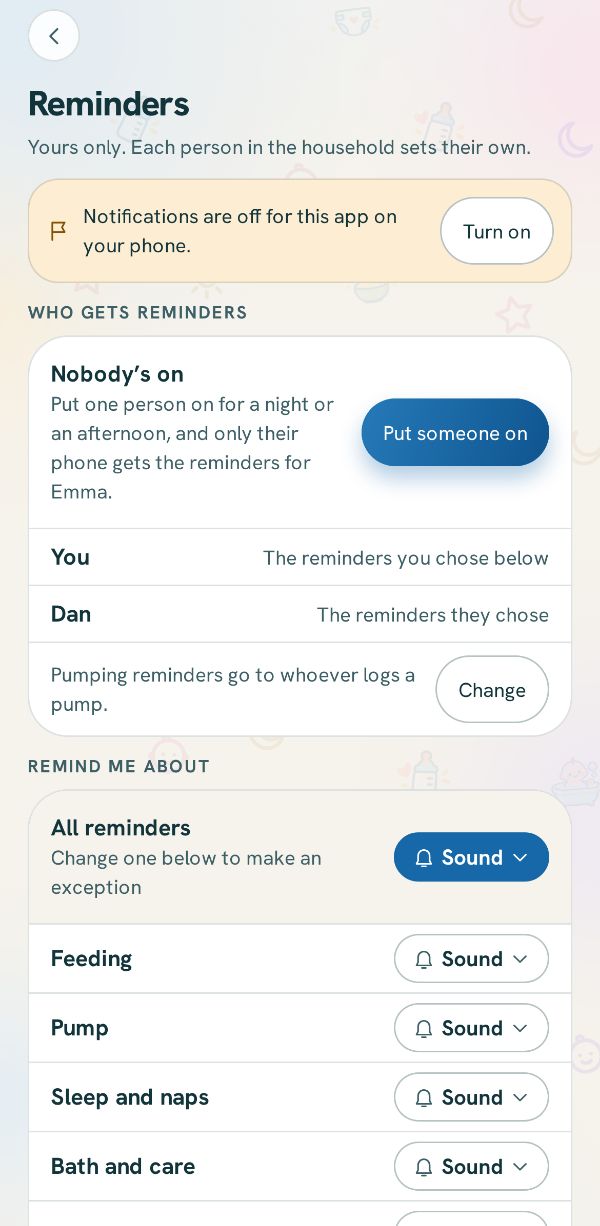
The page opens with Yours only. Each person in the household sets their own. A caregiver is reminded only while on, a view-only member is not reminded at all, and the page says which applies to you. If notifications are off for the app, a row reads Notifications are off for this app on your phone. Its Turn on button shows the phone's own prompt, or opens the phone's settings if you said no before. Come back to the page with notifications on and the row is gone. Reminders ring from this phone. When someone logs a slot, its reminder goes from each phone once that phone has the entry, so a phone that is offline can still ring for something already done. Under Summaries, Weekly summary and Monthly note turn the week's numbers and the monthly card on or off.
Reminder levels: Sound, Vibrate, Silent, Off
Free
Where:Reminders page, under Remind me about.
Each kind you track has a row, such as Feeding, Pump, Sleep and naps, Solids, Medicines, Bath and care, Vaccines and Milk stash, then To do for your timed chores, with a pill showing its level. Tap the pill to pick Sound, Vibrate, Silent or Off. All reminders sets every row at once and reads Mixed when the rows differ. Diapers and tummy time have no row: their slots still show on the Schedule tab, but no reminder rings for them. While you are on for the baby, the baby's reminders ring on your phone even through quiet hours, with sound unless you keep that kind on Vibrate.
Quiet hours
Free
Where:Reminders page, under When.
Turn on Quiet hours and the line under it shows the window, which starts as 10 PM to 6 AM; tap the line to open a sheet whose two time chips change it. A reminder that falls inside quiet hours waits, and rings when the window ends. A heads-up or a not logged yet question that would land inside them is skipped instead. A snooze you asked for still rings at its time. With the switch off, the line reads Off · reminders ring 5 minutes ahead, day and night.
Heads-up a few minutes early
Free
Where:Reminders page, under When.
Once there are a few days of entries, this phone works out how far apart your feeds and pumps usually run and rings between 5 and 20 minutes before the next one would fall, saying how many entries it came from. With Plus it also covers naps and bedtime, about 15 minutes ahead and only between 8 AM and 9 PM, unless nap times or a bedtime are set, and the line under the switch reads Naps included, worked out from your own log on this phone.
Anything already on your schedule wins, so no heads-up rings for something a scheduled slot already covers. It never arrives inside quiet hours, and at most three are waiting on the phone at a time for each baby, six in all. With twins or more, each baby's heads-up is worked out from that baby's own entries and names them. It is worked out on this phone from your own log only; the switch is on to start and is kept on this phone.
Not logged yet follow-up
Free
Where:Reminders page, Ask once if it’s not logged under When.
With Ask once if it’s not logged on, a feed or pump slot still open on this phone fifteen minutes after its time gets one more notification: Not logged yet? Tap Log it once it’s done. It asks rather than tells, because someone else may have logged it and their entry may not have reached your phone yet. It comes once, only between 8 AM and 9 PM, never inside quiet hours, and not for a slot you snoozed. It carries the same Log it and snooze buttons as the reminder, and it goes away once your phone has the entry. A medicine never gets this second ask, so a dose someone else gave is not asked about again. The switch is on to start and is kept on this phone.
Still pumping? for a timer that runs long
Free
Where:Reminders page, Ask if a timer runs long under When.
With Ask if a timer runs long on, a running timer gets one notification once it has gone past its usual length: Still pumping?, or a question with your baby's name for a feed or a nap, with how long it has run and the usual it is compared with. The usual is the middle of your own last sessions of that kind, your own for a pump and the baby's own for a feed, plus five minutes or a sixth of it, whichever is more, so pumps that usually take 30 minutes ask at 35. With fewer than three sessions logged there is no usual yet, and nothing comes. With Plus, a sleep timer is asked about ten minutes after the sleep outlook's usual waking, asking whether your baby is still asleep, only between 8 AM and 9 PM. It comes once per timer, only on the phone that started it, never inside quiet hours, and it goes away when the timer stops. A tap opens the timer, where you can stop it or set when it really ended. The switch is on to start and is kept on this phone.
What's next in the notification shade
Free
Where:Reminders page, Keep what’s next in the notification shade (Android only).
With this on, a silent notification stays in the shade all day showing the next planned thing and its time, then the two after it, the same rows as Up next on Today. It never sounds or pops up, and it comes down when nothing is planned. The switch is on to start and is kept on this phone. It is on Android only; on an iPhone the page has no such switch.
Running timers in the notification shade
Where:Reminders page, Running timers in the notification shade (Android only).
While a timer runs, its notification shows a clock counting up, the same time as its card on Today, and a stop button named as on the card: Woke up, Finish or Stop. Stopping a sleep, a breastfeed or tummy time saves it at once, with Undo in the app, and stopping a pump opens the app to ask how much. It never sounds or pops up, and a timer stopped on another phone leaves yours the next time the app is open. Without Plus the row shows the Plus chip and reads Plus · a clock that counts, with a button to stop it.
Reminder notifications: Log it and snooze
Free
Where: On your phone's lock screen or in the notification shade.
A reminder rings five minutes before its slot, usually titled with the activity and the slot's time, and only for the slot that is open now: a missed or skipped slot never rings. Log it first checks for entries from the other phones, so a slot someone already logged says when it was logged and nothing is saved. It then saves a bath straight away when it is clear which baby it is for; otherwise it opens the log sheet, so a bottle is never saved at an amount nobody entered. A medicine is never saved from the notification: its sheet opens with the medicine picked, under the line that says when it was last given and by whom, and you save it there.
The snooze button rings the same reminder again in ten minutes, on this phone only, and the app shows the new time. If someone already logged the slot, the app opens the Schedule tab and says when it was logged; if the slot has moved on, it says That reminder is out of date. Here’s the schedule now. Tapping the reminder itself just opens the app.
The milk stash
The Stash tab keeps count of the stored breast milk in your household, where it is, and the dates from the published guidance file it names.
Milk stash
Free
Where: Tap Stash in the tab bar, or the milk stash card on Today.
The Milk stash page shows how much milk is stored, where it is, and the dates for each container. It is there while the Milk stash card is on in More, then Activities & feeding, under Feeding. The Add milk button floats at the bottom of the page, so you can add stored milk from anywhere on it. Under the title, a line says when someone in the household last changed the stash, or Nothing stored yet. With no place to keep milk yet, the page asks Where do you keep milk? and offers a parent or owner Add a location.
Total stored and Enough for
Free
Where: At the top of the Milk stash page.
The big number is the milk in the stash that is still inside its best-use window, in your household's milk unit, with how many containers hold it. Milk past its best-use date is not in it: it has its own Past best use row below, stays listed in its place, and can still be used. Today, Enough for and Reports count the same milk. A bar and its legend split the total by place, counting only places that hold milk, and thawing milk is shown with the fridge it sits in.
Enough for is how many days, or hours if it is less than a day, the stash would cover if every feed came from it. The figure under it carries a tilde (~1 day, ~12 hours) to mark it as approximate. The line under that shows what that is divided by: your feeds a day, counted from your log once it has three full days of feeds and from the routine you set until then, times your usual bottle. Tap that line to open How this is worked out, which says where each number came from. The column is hidden when there is nothing to divide by.
Stash insights and the weekly balance
Free
Where: On the Milk stash page, under Stash insights, after the places.
A Past best use row appears only when a container is already past its best-use date, and a Use soon row only when there is milk to use soon: frozen milk within 30 days of its best-use date and other milk within 48 hours, as the row says under its count. Each shows its amount and how many containers, and no container is counted in both. These rows are on every plan. The Last 7 days row is the weekly balance: the net change with a plus or minus sign, then a bar and legend for what went into the stash, labeled added, what was used and what was tossed. Discarded milk counts as tossed, while a corrected amount or a save taken back with Undo is left out of all three.
Use first and use soon
Where: On the Milk stash page under Use first, and on Today's milk stash card.
With Plus, Use first lists the three containers nearest their best-use date, from any place, each with a countdown chip and where it is. Tap the count beside the heading, such as All 12, to see every container in that order, and Show fewer to go back. On the free plan the card shows the shape of the list with the order held back, the count is not there, and the Plus chip beside the heading, or the card itself, explains what Plus adds. Every container still shows its own dates on every plan. On every plan, Today's Milk stash card also shows an amount to use soon when there is any: frozen milk within 30 days of its best-use date and other milk within 48 hours. When milk is already past its best-use date, the card shows that amount first instead, so it can be dealt with; use soon comes back once it is. A reminder at 9 AM, on every plan, says when milk is 30, 7 or 0 days from its best-use date.
By location cards
Free
Where: On the Milk stash page, under By location.
Each place has a card with its name, total, container count and a one-line summary: how many are past their best-use date or to use soon (for example 1 past best use · 2 use soon), the oldest date and the next best-use date, or Empty. Tap a card to open or close it; your phone remembers this for each place, and a place with one or two containers starts open.
A place with more than five containers gets By day or All bags and a sort chip for Oldest first or Newest first; it starts on Oldest first, so the containers to reach for come first. By day groups containers by the day they were stored (the pump day), opens the first two days, and puts their shared best-use date on each day's header. A freezer holds months of milk, so it reads By week instead: one group for each week from Sunday to Saturday by the freeze day, the first week open, each bag's own freeze day on its row, and the week's earliest best-use date on its header. When there are more days than fit, a button says how many more containers there are, with the earliest best-use date among them, such as Best use by Sep 3 or later. A countdown chip appears on a row only when it is to use soon or past its best-use date, and Manage beside the heading opens your storage locations.
Storage windows and the guidance source
Free
Where: At the bottom of the Milk stash page, under Storage windows.
Four cards show the best-use window for room temperature, the fridge, thawed milk in the fridge and the freezer, as the guidance file gives them. The file's source and date sit beside the heading. Every date in the stash is worked out from this file, not from anything the app decides. The note under the cards says this is general published guidance, not advice about your milk or your baby, and suggests checking with your own health professional. If the file is not on your phone yet, the section says so instead of showing any numbers.
Adding milk and using it
How milk gets into the stash, by hand or from a pump session, and how a bottle takes it back out.
Add stored milk
Free
Where: Tap Add milk on the Milk stash page, or Add stored milk when the stash is empty.
Set the Amount with − and +, or tap the number to type it; it starts on the amount you added last time, or 4 oz (120 mL) the first time. Pick a Container: Bag, Bottle or Container; the one you added last is picked to start. Under Location, tap one of up to four of your places; your default place is picked to start. All locations lists every place, and tapping one picks it and goes back. With more than four places, Show all locations beside New location lays every place out on the sheet, and Show fewer folds them back. A parent or owner can tap New location to add one without leaving the sheet. Under Pumped, choose Today, Yesterday or Pick a date, then tap Time to set the time; a time later than now is saved as the day before. Milk added to a freezer is counted as frozen on the day it was pumped. Tap Add to stash, and the message that confirms it has an Undo.
Colostrum syringes
Free
Where:Add stored milk, then Syringe.
Choose Syringe as the container to keep colostrum you collect, before or after the birth. Its amount is in ml, one at a time, whichever unit your household uses. The storage guide gives no date for colostrum in a syringe, so it shows when it was collected and frozen, and never a best-use date.
Storing or feeding a pump session
Free
Where: On the pump sheet, under Also add, tap Log a bottle feed or Add to stash.
The page keeps the pump's name. At the top, Session details shows the amount, the length and when it finished; tap it or Edit to go back and change the session, and everything on this page is still there when you come back. Under it, Pump only, Bottle feed and Save to stash say what the milk is for, and only the one chosen is saved.
Save to stash stores the whole session, its first container in your default place for new milk (Refrigerator in a new household), so even the first pump after setup can be saved straight away without adding a place. Bottle feed sets one amount for a bottle for your baby, starting on that baby's last bottle (never more than the session), and what is left shows under To store. If the bottle takes it all, nothing is stored and the button reads Save pump & feed; otherwise it reads Save pump & milk. When a bottle is part of the save and you have more than one baby, a chip for each baby asks which one, since one bottle feeds one baby. The message after saving has an Undo that takes back the whole save. Deleting the session later from the log takes its untouched containers out of the stash too, and that delete's Undo brings them back; a container already poured from stays, and the message says how much was used. Correcting the session's amount moves its containers in the stash by the difference. If you have turned the milk stash off, Bottle feed is still there: the page shows only the bottle, and saving logs the pump and the bottle with nothing stored.
Storing a session in several containers
Free
Where: On the pump's second page, under To store.
Pick Bag, Bottle or Container; every container in one save is the same type. Each row is one container: its name, its amount and its place. Tap Add bottle (or bag, or container) to split the last row's milk into a new row, up to six; tap × to remove a row and give its milk back to the last one. Every row but the last has its own amount, and the last holds the Remainder, so the rows always add up to what is stored. A generic container's rows read Item 1, Item 2. Tap a row's place to pick from every place you have. If the rows hold more than there is to store, a line says so and the save waits until you lower one. When a container goes to a room-temperature place, a line gives that condition's window from the guidance file with its source, and when milk goes into a freezer the page says The freeze date is today, and it stays with the milk.
Use from the stash
Free
Where: Log a bottle with Breast milk as the type, or tap Use for a bottle on a container.
The Use from the stash row sits on a light panel, apart from the amount and the type. It appears for breast milk when your household keeps a stash, and it works for one baby at a time: with more than one baby chosen it says Off while more than one baby is chosen, with a line in red under it saying the stash works for one baby at a time, and with nothing stored it says Nothing in the stash yet. The stash goes down by what was In the bottle, not by what your baby drank, and a line under the choice says what stays in the container. With Some left, the line under Left in the bottle says the same, as in Took 90 mL · what's left isn't added back to the stash. If one container is not enough, the rest comes from the next one, and if the stash runs short the feed is still saved and the message says how much wasn't found in the stash.
On the free plan a bottle takes thawing milk first and then the oldest pumped, shown as Oldest first. Tap Choose… to see every container in that order, with its dates, and pick the one you are holding; the bottle then takes that one first and any more it needs oldest first. Use for a bottle on a container opens the bottle sheet with that container chosen, on the baby up next even when the top bar is on both, since a container feeds one baby, and with your baby's last bottle amount in the bottle, or the whole container if it holds less (4 oz, about 120 mL, before the first bottle). Deleting the bottle puts the milk back, and correcting its amount later moves the stash by the difference; the message says so when the stash could not follow.
Best-use order
Where: In the bottle sheet, under Use from the stash.
With Plus, chips such as Fridge 4 oz name the containers a bottle draws from, in this order: milk out at room temperature, then thawed milk, then the fridge, then frozen milk by best-use date. The chosen container's reason sits under the chips, and Choose… lists every container with its reason so you can pick another. A container under 30 mL, or past its Storage guidance limit, is still listed but marked Listed, not suggested.
If nothing is suggested, the row says Nothing suggested right now. Choose one below. and the bottle waits until you choose one or turn the switch off. The order comes from the published windows and says nothing about which milk is better. On the free plan, a locked Best-use order chip shows what Plus adds.
Working with a container
Tap any container to see its dates and to move, thaw, split, correct or discard it.
Stored milk
Free
Where: Tap any container on the Milk stash page.
The top shows the amount, the container type and a badge such as past best use or the days or hours left to the best-use date. Below are its place with the storage condition its dates follow, Pumped, First frozen when it froze on a later day than it was pumped, Thawed once it has thawed, then Best use by, with the storage guidance limit as its second line. The actions include Move to, Use for a bottle, Mark thawing, Split, Combine when another container is in the same place, Correct the amount and Discard. A line at the foot says where the dates come from, such as By CDC · Jan 15, 2026. A split, a correction or a discard is confirmed in a message with an Undo that puts the container back as it was. A move or a thaw has none, because the freeze and thaw times it writes stay with the milk; move the container back instead.
Best use by and Storage guidance limit
Free
Where: On each container's Stored milk sheet.
Every container shows both Best use by and Storage guidance limit, and the two can be far apart, for example for frozen milk. The app adds the windows from the guidance file to a time you recorded: the pump time for room temperature and the fridge, the first freeze for a freezer, and the thaw time for thawed milk. Thawed milk in a fridge follows the file's Thawed, in refrigerator condition. The dates are worked out each time you look, so changing a place's condition updates every container in it. The app shows these dates and makes no judgment about the milk.
Countdown chips
Free
Where: On container rows in Use first and in the By location cards.
A chip reads Past best use once the best-use date has passed. Before that it shows the hours left, such as In 3 h, when less than twelve hours remain, then Today, Next day or a number of days, and from two weeks out the best-use date itself. Days are counted by the calendar, so a container due at 1 a.m. the next day reads Next day. The words carry the meaning and the color only repeats it, and each chip is a fact about a published window, not a verdict on the milk.
Moving milk between places
Free
Where: On a container's Stored milk sheet, under Move to.
Tap one of your other places under Move to; the thawing place is not offered there, because Mark thawing does that. Milk moved into a freezer for the first time gets today as its freeze date. Moving between freezers keeps the original freeze date, so the dates never move later. Moving a container out of a freezer to the fridge or the counter starts its thaw at that moment. The message says which of these happened.
Thawing
Free
Where: On a container's Stored milk sheet, tap Mark thawing.
Mark thawing moves the container to your thawing place, which the app adds the first time a parent or owner uses it, named Thawing (fridge). From then on its dates follow the guidance file's thawed window, counted from that moment. A container that is already thawing is not offered Mark thawing again, since that would restart its dates. If a thawing container needs to go back, Still has ice crystals: back to the freezer returns it to a freezer with its original freeze date. On the total card, thawing milk is shown with the fridge it sits in.
Splitting a container
Free
Where: On a container's Stored milk sheet, tap Split.
Set the amount with the Split off stepper, and the line under it says how much stays in this container. Tap the button that names the amount to split it off, or Back to leave things as they were. The new container stays in the same place and keeps the same pumped, frozen and thawed times, so its dates match. The stash total does not change.
Combining two containers
Free
Where: On a container's Stored milk sheet, tap Combine.
Combine shows when another container is in the same place and the place is not a freezer. Pick the container to pour in from the list under Combine with. A question says which two become one and the best-use date the milk keeps, the earlier of the two; tap Combine to pour them together, or Keep apart. The container with the later date is poured into the one with the earlier date, so the milk always carries the earlier date. The stash total does not change. Milk poured together cannot be poured apart, so there is no Undo.
Correcting or discarding a container
Free
Where: On a container's Stored milk sheet, tap Correct the amount or Discard.
Correct the amount opens a stepper on the exact amount; change it and tap Save the amount. Correcting to zero takes the container out of the stash. Discard offers a Reason (optional): Storage time, Baby didn't finish, Spilled, Storage issue or Other, then a button that names the amount. Discarded milk is counted as tossed in the weekly balance, so the numbers add up.
Storage places
Where your household keeps milk, and what each place's condition means for its dates.
Storage locations
Free
Where: Tap Location next to the Milk stash title, or Manage beside By location.
Storage locations lists every place with its condition, what it holds, and which one is the default for new milk. Households start with Refrigerator as the default, Kitchen freezer, Deep freeze and Counter, and a thawing place is added the first time milk is marked thawing. Tap a place to edit it, or Add a location to make a new one. Only a parent or owner can change locations, and anyone else sees Only a parent or owner can manage locations.
Adding or editing a location
Free
Where: On Storage locations, tap a place or Add a location.
Give the place a Name of 2 to 40 characters and, if you like, a Short name (lists and widgets); left blank, the first word of the name is used. Pick its Storage condition, and a card shows that condition's best-use and limit windows with the guidance profile they come from. Turn on Default for new milk to have it picked first when you add milk, then tap Add location or Save changes.
Delete location works only when the place is empty, and the message offers an Undo. While adding milk, a parent or owner can also tap New location, type a New location name and pick a condition without leaving the sheet.
Storage condition
Free
Where: In a location's sheet, under Storage condition.
The choices are Room temperature, Refrigerator, Freezer, Deep freezer and Thawed, in refrigerator, named as the guidance file names them. Changing the condition of a place that holds milk asks first, and says how many containers will have their Best use by and Storage guidance limit dates worked out again. The date each container was first frozen never changes, and milk that has never been frozen gets today's freeze date if the place becomes a freezer. Tap Change condition to go ahead, or Cancel.
Supplies and the shopping list
Supplies is your household's catalog of what you buy again and again, and the shopping list is the next trip.
Supplies
Free
Where: On the Shopping list, tap Add item, then Manage all supplies.
Each supply shows its category picture, its brand, and a line with the category, size and shop. Tap the plus on a row to put it on the shopping list; it turns into an On list pill, and tapping the pill takes it off again. Tap the name to edit the supply. The control beside the count sorts the catalog By category, A–Z or By shop, and your phone remembers the choice. The card at the top says how many things are on the shopping list and opens it, and brands you typed during setup are already here. With nothing in the catalog yet, the page says No supplies yet with an Add supply button on the card.
Add supply
Free
Where: At the bottom of Supplies, tap Add supply, or tap it on the card when the catalog is empty.
The sheet first asks What are you adding? with 15 categories as pictures, from Diapers and Wipes to Vitamins and Other. Then fill in the Brand, the one field you must fill, plus Size or detail, Where you buy it (optional) from your own shops or a New shop, and a Product link (optional), and tap Save.
Opening a supply later shows Edit supply, where Category lets you change its category and the On the shopping list switch adds it to the list or takes it off. Remove from supplies asks first, because it also takes the item off the shopping list, and the message offers an Undo.
Shopping list
Free
Where: Tap Shopping in the tab bar, or the shopping list card on Today.
Under the title is how many things are left to buy, and a progress card such as 0 of 4 in the basket, with how many shops. Every shop sits in one card, Any shop last. A supply shows its name, with the category and size under it. A one-off shows One-off and no picture. Use the minus and plus to change how many. At one, the left control becomes an × that takes the line off the list; above one it is a minus. Swipe a row left to reveal Remove, which does the same. Removing a line leaves the saved supply in place. Tap a supply's name to correct its size or shop. Under the list, Shared with your household. explains who the list belongs to, and Add item opens the add sheet. Today's card shows how many things are left to buy, or Nothing to buy. When the list is empty, the page says Start with the essentials: Browse baby essentials opens the starter packs, Add an item opens the add sheet, and Track what you already have opens Supplies.
Adding to the shopping list
Free
Where: On the Shopping list, tap Add item.
Add item opens Add to the list, which stays open while you tap a supply to put it on or take it off. Under the search, Add a one-off is for anything just for this list: type its name in the search box first, then tap it. As you type, the sheet offers to add that name as a one-off, even when a supply matches. Search with Search supplies or type any item or filter by category. Manage all supplies opens the catalog. Done closes the sheet and says how many are on the list.
The basket and Clear
Free
Where: On the Shopping list.
Tap the circle beside a line to tick it, and it moves to In the basket; tap it again to put it back. Tap Clear on the basket's heading to finish the trip: ticked lines leave the list, each bought supply records the day it was bought, and anything unticked stays for next time. The message that confirms the trip has an Undo. Adding something to a list where everything is ticked also finishes the last trip first, and its message offers the same Undo.
Sharing the shopping list
Free
Where: Tap Share at the top of the Shopping list.
Share opens your phone's own share sheet with only the things still to buy. The message starts with Please buy this for Emma, or Emma and Leo for twins, then how many items and shops. Each shop follows in capitals with its lines under it, and each line names the category and brand, with the size, any note and the product link on their own lines. The last line says the app made the list, with the date and time.
Might be running low
Where: On the Shopping list, below the basket.
With Plus, Might be running low lists up to four supplies you have not bought for at least as long as you usually go between buys of them. Once you have bought a supply twice, its usual gap is the middle of the days between your own buys, and the row says it, such as Bought 12 days ago · usually every 10 days, over 3 buys. Until then it uses a starting gap for its kind, such as 14 days for diapers or 21 for wipes, and says that too. Tap one to put it on the list. A purchase is recorded when a trip is finished, and supplies already on the list or never recorded as bought are left out. It is arithmetic on your own shopping, not a prediction. On the free plan the section shows the shape of the list, with bars where the names and the days would be, the Plus chip and a line about what it works out; tap it to see what Plus adds.
The household to-do list
A shared checklist for the chores that keep the day working, like washing bottles or packing the diaper bag.
To do
Free
Where: On Today, tap the link beside To do or any chore under it; until the list has something on it, More, then To do.
Today's To do section appears once the list has something on it (or once you turn on To do strip in Activities & feeding), and while it is not on Today, More has a To do row. It shows up to four of today's chores, each with its time and who it is for, and you can tick them right there; with nothing due today it says You have no to-do reminders set, and tapping that opens the list. The To do page opens with one line on what it is for, then Today with a count of how many are done, then Not today for chores that are not due today. Each of today's rows shows the chore in its own words, its time or Any time, who it is for, and an Overdue badge once its time has passed. A chore with a time sends one reminder at that time on each day it is due, to the person it is for, or for Anyone to everyone who helps (only the person on, while someone is on for the baby); a Just once chore sends it on its one day, and Any time sends none. Ticking it before then cancels it on every phone once they have the tick. Its level is the To do row on the Reminders page. With nothing on the list yet the page shows No tasks yet and one button, Add a task. The small info button beside the title opens About this list, four short lines on how the list works. It is a chore list for the household, kept apart from your baby's history and reports, and it is included when you use Download all.
Adding a task
Free
Where: On the To do page, tap Add task beside the first heading, or Add a task on an empty list.
Type the Task, or tap one of the Quick picks: Wash bottles fills in Wash and prepare the bottles, Sterilize pump fills in Sterilize the pump parts and Pack bag fills in Pack the diaper bag; More shows the rest. A pick only fills in the name. Then tap each row to change it: Time keeps the time it starts with (9:00 PM, or 21:00 on a 24-hour clock), opens the clock to pick another, or chooses Any time; Repeat is Every day, Weekdays, Weekends or Just once; Assign to is Anyone or a person in your household. Each picker keeps its choice when you tap Done, and what you typed stays as it was. Tap Save task. To change a chore later, tap it to open Edit task, where Remove deletes it with an Undo in the message.
Ticking a chore off
Free
Where: Tap the circle beside a chore on the To do page or in Today's To do section.
The tick marks the chore done for today, and on the To do page the message has an Undo; tap the circle again to untick it. A repeating chore comes back on its next due day. A Just once chore moves to Not today once it is ticked. Tap the chore itself, not the circle, to change it.
Getting ready before the birth
Checklists, appointments and contacts the whole family shares, from the first weeks of waiting to long after the birth.
Getting ready
Where:Today while your first baby is on the way, or More, then Getting ready.
While your first baby is on the way, Today is about getting ready. The card at the top shows the days to go and the due date, with Edit under it to change the date, and Baby’s here on the right. Under it are your three checklists, Hospital bag, Before the baby comes home and Newborn essentials: tap Start and the list is made and opened, and from then on the card shows how far along it is. To do and Contacts come next, then Coming up, your shopping, an invitation while nobody else has joined, and A little look ahead, a made-up day to try the app on. The Log tiles and Today’s log wait until the baby is here; the + still logs and the Stash tab is still there.
Everything here is free. After the birth the page is called Lists and contacts: your contacts and what you make from then on stay there, and the lists and appointments from before the birth become a keepsake on Reports, below. A family with a baby already born and another on the way opens the same page from one row on Today.
Checklists
Where:Getting ready, then View all, or Start a list.
Tap Start a list and pick a Ready-made list, each with its picture, a line on what it is for and how many items it starts with. Or tap Create a blank list, type its List name, then Start list. A ready-made list arrives with every line on it, and every line is yours to change, add to or remove. The paperwork list is offered once a baby is born.
Unlike To do, a checklist does not start over each day: a packed bag stays packed. Both phones see every tick as it happens. List options renames a list or takes it away with Remove list, and Undo brings it back with its items.
Checklist items
Where: Open a list, then tap an item, or Add item.
Tap the circle to tick an item. Tap its name to change it: Section says who it is for (the birthing parent, the support person, the baby, documents, the home), Assigned to picks who does it, someone in the family or Anyone, and Target date takes a date. While a due date is set, a count of weeks before it follows the due date if it moves; a picked date stays put.
Not needed takes an item out of the count without ticking it, and it stays on the list, quieter, saying Not needed. Add to shopping list puts it on the shopping list; buying it does not tick it here. Each section's heading shows how many of its items are done, such as 3 of 12; tap a heading to fold the section away, and tap it again to open it.
Appointments
Where:Getting ready, then Coming up or Appointments. They also show on the Schedule tab.
Tap Add appointment and fill in a Title and the Date, the two things it needs, then if you like the Kind, a Time, the Place and Who is going. With no kind picked it is saved as Other. A Reminder rings on the phones of the people picked; pick nobody and everyone who can log is reminded. With no time set, each reminder choice names the time it rings, for example the day before at 9:00 AM. Notes are your own words, such as questions to ask.
Tap Directions to open the place in your maps app. Past appointments wait under Past. Someone who can only view opens an appointment to read it.
Contacts
Where:Getting ready, then Contacts.
Tap Add contact and type a Name, the one thing it needs, then Who they are, a Phone number, an Address and any Notes, and tap Save contact. On the list, tap Call or Directions under a contact; each shows when the contact has a number or an address. Contacts are typed in by hand; the app never reads your phone's address book.
Before the birth, kept
Where:Reports, under Memories, the row named for your baby, such as Before Leo was born, with Your lists, appointments and countdown under it.
Recording the birth is final. The sheet The baby is here opens says under its first line that once saved, this can’t be undone, and that your lists and appointments from before the birth become a keepsake on Reports. Save asks first, such as Leo is here?, with Record the birth or Not yet. Once the birth is saved, the app can’t go back to before it.
From then on the lists and appointments from before the birth leave Lists and contacts, the checklists, the appointments, the Schedule tab, Today and the +, and are kept in one place. A list goes when it was started for that baby on or before the birth, or before any baby was born; the paperwork list stays. An appointment goes when it was for that baby on or before the birth date. Appointments for nobody in particular and all your Contacts stay. Nothing is deleted, and Download all in Your profile has every line on every plan.
The keepsake page shows the due date and the birth date, how many days before the birth you started getting ready, Your lists with how many of each were done and All done on a finished one, Appointments by date, and Who helped, such as Mia ticked 18. On the free plan the row shows a lock, and the page shows The countdown, Your lists, Appointments and Who helped with bars where the words would be; tap it to see what Plus adds. Each baby with something kept has their own row.
Starter packs
Free
Where: On an empty Shopping list, tap Browse baby essentials; once it has lines, Starter packs under Add item.
Each pack groups newborn basics, such as diapering, sleep or bottle feeding, offered by what your family uses. Untick anything you already have or do not need, and use the minus and plus beside a line to change how many, from 1 to 99, before you add the rest. A thing already on your list shows On your list, is never added twice and keeps its own quantity, and Undo takes the pack back off.
The Reports page
Reports adds up what your household logged, today and over the last 7, 14 or 30 days, and never says what the numbers mean.
Reports
Free
Where:More, then Reports. On the Today screen, the Reports link beside the day's totals opens it too.
The page opens with Today so far, then the door to the visit summary, then the chips 7 days, 14 days and 30 days, which set how far back everything below them looks. Cards follow only for what your household logs, with See the charts and Usual windows last, just above Memories, so a family that never logs solids never sees a foods card, and a range with no entries says Nothing logged in this range. In the Both view every card is each baby's own, named, one after the other, and pumping gets its own Pumping card.
The totals are free on every plan, while the comparisons, the day-by-day charts, the usual windows, the visit summary and ranges past 7 days are part of Plus. During your 14 days of Plus, those parts wear a small Plus tag. Near the end are Memories and then Download all, which opens Your profile, where your free full download is. Just after you join a household or reinstall the app, a card says Still loading older entries until this phone has your whole history.
Today so far
Free
Where:Reports, at the top.
Today so far always shows today, whatever range is picked below it, and carries the figures your household tracks or has logged, each on its own module's soft color. Each figure says what it is made of, such as the number of bottles and how much, time at the breast, night sleep and naps, or wet, dirty and mixed diapers, and it counts any diapers where you ticked a rash. Under feeds, sleep and diapers a strip marks the day: a dot for each feed, a block for each sleep and a mark for each change. Last night sits on one row at the bottom: how many feeds, and the longest sleep, counting the night from 7 p.m. to 7 a.m.
Daily and weekly totals
Free
Where:Reports, under the 7 days, 14 days and 30 days chips.
Each figure is an average a day, such as about 8 feeds a day; feeds, diapers and pumping also give the total for the whole range, and sleep is split into night and naps. Each average counts the days that kind of entry was logged, and only days that are over: today joins it once the day ends, and until then it is in Today so far. A line on the card says which days the averages used. Before any day of the range is over, each figure is its total so far. A past week opened from Your week is headed with its own dates.
Over 7 days each figure gets a small bar for each day with its number written on it, and sleep is drawn as a strip for each day; over 14 or 30 days each bar is one week. A day with nothing logged gets no bar, never a zero. The nights sit on one row: about how many feeds each, and the longest sleep, with A night is 7 p.m. to 7 a.m. under it. The card also lists the days a diaper rash was ticked.
Comparisons
Where:Reports, on the right of each figure on Today so far and on the range card.
Today's figures are compared with yesterday up to the same time of day, and a range is compared with the same number of days just before it, such as the week before. The comparison sits on the right of the number. It says how much and which way, for example two more feeds than yesterday, and never whether that is good or bad. When the full line does not fit, it shortens, so a long sleep becomes +5h 8m than yesterday, and on a narrow phone just +5h 8m. On the free plan the first figure on each card shows the Plus chip in place of the numbers, keeping only its last words, and the card says Comparisons are part of Plus. Tap a locked line to see what Plus adds to Reports.
Ranges longer than 7 days
Where:Reports, the 14 days and 30 days chips.
Every chip can be tapped on every plan. On the free plan, picking 14 days or 30 days still draws the last 7 days, and a card with a lock says so and that anything further back is part of Plus. Nothing is taken away: your full download always contains everything, on every plan. Tap the card to see what Plus adds.
The shape of the day
Free
Where:Reports, tap See the charts near the bottom of the page, above Memories.
The shape of the day has a row each for bottles, breastfeeds, sleeps and diapers. Each row names the hour that held the most, says how many entries it came from, and draws the day as one strip. The mark follows how many entries that hour held. It counts when things started, so a two-hour nap is one entry at the hour it began. It appears once at least two kinds of entry, such as feeds and sleep, are logged in the range. Closed, See the charts shows only Where things were logged, hour by hour.
Day-by-day charts
Where:Reports, tap See the charts near the bottom of the page, above Memories.
Open See the charts, then Each day, for Night and naps, by day, Taken and pumped, by day and Wet and dirty, by day. Each day says these are one column a day, from the totals above. A diaper that was both wet and dirty is counted in each bar and once in the total. On the free plan each chart's bars are drawn in gray with the numbers left out, with a line saying the totals above are free on every plan; tap one to see what Plus adds. In the Both view each baby has their own charts, named. With only one kind logged, those columns are what See the charts opens on, and there is no Each day row.
Usual windows
Where:Reports, the card after See the charts, once feeds or sleep are logged.
Usual windows looks at the last 14 full days of your own log; today is not counted yet. It has rows for The first feed of the day, The morning nap, Bedtime and The longest stretch at night. Each row shows the time large, in that row's color, a band on a 24-hour track, and how many of those days it came from. The longest night also shows how long those stretches ran.
How these were counted opens the full sentences, including Counted from your own entries. Nothing here says what comes next. A row needs 5 days with that event before a window appears, and until then it says Still watching. On the free plan the bands are drawn in gray in their places with the times left out; tap the card to see what Plus adds.
Foods card
Free
Where:Reports, once solids are logged in the range.
Foods opens with three counts: the foods, the ones eaten for the first time, and the meals. Each food then shows how many times it was eaten and how it went by the reactions you picked, such as liked or not sure. A First time badge and its date mark a food eaten for the first time ever in this range, judged against your whole log. Tap a food to see when it was first eaten and every meal it was in during this range, with the amount, how it went, what else was eaten and your note. What you noticed shows your latest notes about meals, word for word.
Milk stash, this week
Free
Where:Reports, when the Milk stash module is on.
Milk stash, this week shows how much is in the stash now and in how many bags, with a bar split between the fridge and the freezer, each named with its amount. Under it are what was added and what was used or tossed since Monday, each with a small bar for each day. A week with nothing going in or out says Nothing added or used since Monday. Every figure comes from the stash's own entries.
Dirty diapers card
Free
Where:Reports, once a few diaper changes have been logged.
Dirty diapers says when the last dirty diaper was logged, about how far apart dirty diapers have been in your log and over how many gaps, the longest gap logged so far, and how many a day, over the days a change was logged that are over. In the Both view each baby has their own card. If the time since the last one is longer than any gap in your log, it says so in one plain sentence on a gray panel, with no red.
A diaper icon sits beside the last dirty diaper, and short rows give this household's own spacing. Under Where published guidance on this is it names the published pages, each opening in your browser, with the date they were retrieved, so you read them in the publisher's own words. Once their wording has been checked against those pages, the card shows one published sentence, word for word, with its source and the date it was checked, and What they say to ask a clinician about opens for the rest. A line says this is general published information, not advice about your baby. The app does not apply or interpret any of it.
What the numbers say
Free
Where:Reports, after the other cards.
What the numbers say can give up to four figures, each centered on its own tint, in the same type as the other figures: the average bottle and how many bottles it came from, the average time between feeds measured start to start, the average pumping session and how many sessions, and the longest sleep logged. A figure appears only when there are entries for it, and a screen reader hears the whole sentence. Under them the card says Arithmetic on your entries only. No judgment of amounts, supply, sleep or growth.
Growth cards on Reports
Free
Where:Reports, under Growth, when you track growth and your baby has a measurement.
There is a card for each of Weight, Length and Head that you have measured, with how many measurements it holds and the latest one. With two or more on different days it adds the change between the first and the latest, that change per 30 days, and a line chart; with only one it says One measurement so far. A second one gives a rate. The cards look back over the last year of measurements, whatever range you picked. There is no percentile and no reference curve.
The pediatrician visit summary
What you logged for one baby, to hand over at an appointment or send before it.
Visit summary
Where:Reports, Visit summary just under Today so far. From a week before a vaccine visit you planned, the Visit summary row on the vaccine card or the Vaccines page opens it too.
The page is called Visit summary, and with more than one baby you pick one under Which baby is this about?, since a summary is always one baby's, never two added together. Under What period is this about? choose Today, 3 days, 7 days or 14 days, and note that The last dirty diaper is always the real one, whatever period you pick.
The sections run Sleep, Feeding, Solids if your baby has solids logged, Diapers, Temperature readings with every reading and how it was taken, Medicines, vitamins and creams with amounts exactly as you typed them, Measurements, Vaccines recorded with each dose you recorded as given and its date when you keep the vaccine record, Health notes with everything logged in the 48 hours before each one (foods named, a first time logged marked, medicines with the amount you typed), and Notes from the household. The top says how many of the period's days have entries. Each average is over the days that kind was logged that are over, and says how many; today is its own Today so far row. The closing line says that gaps mean nothing was logged and that nothing has been interpreted. On the free plan the card on Reports reads Visit summary with a lock; tap it to see what Plus adds.
Saving the visit summary as a PDF
Where:Visit summary, the buttons at the bottom.
Save as PDF makes a PDF of as many pages as it takes and opens your phone's share sheet, so you can print it, mail it or save it to your files; the button says Building… while it works. Share this summary sends the same summary as plain text to mail, a message or a printer. If the share sheet will not take the PDF, your phone's print screen opens instead, and on Android you can keep the file by choosing to save as a PDF from the printer list.
Memories, notes and summaries
Notes for your baby's month-days, your week in numbers, a place to read the notes again, a keepsake of the first year, and one of the time before your baby was born.
Monthly note
Where: It rises on Today. To turn it off: Schedule, then Reminders, then Monthly note under Summaries.
A note comes on each month-day up to the first birthday, then on the second and third birthdays, from 9 a.m. where your household is, headed with your baby's age and name. It waits for a calm daytime moment, between 8 a.m. and 9 p.m. on your phone, with Today open, no timer running and nothing else on screen, so it never appears over an entry you are logging or in the night.
It shows only the figures your household logged that month, such as milk, sleep a day, the longest stretch and diapers a day, and says when a daily average counts only the days that kind was logged, once each day is over. No note comes for a month with nothing logged, and a missed note still comes within a week. Close puts it away, and you can read it again in Monthly notes.
Monthly notes
Where:Reports, under Memories: Monthly notes.
Monthly notes lists each note newest first, grouped by baby when you have more than one, and tapping one opens the same card with the numbers it showed on the day. The notes are kept on this phone, so another phone in your household keeps its own set. Until the first note it says No monthly notes yet.
Weekly summary
Where: It rises on Today. To change it or turn it off: Schedule, then Reminders, then Weekly summary under Summaries.
Your week covers the seven days ending on the day you chose, for the whole household, with the same kinds of figures as the monthly note. It comes on your chosen day, not before your chosen hour, which is Sunday after 7 p.m. unless you change it; tap the line under Weekly summary to pick the day, and tap the hour chip to step through daytime hours.
Like the monthly note it waits for a calm daytime moment on Today, and a missed one still comes within three days. Open the full report takes you to Reports for that week, headed with its dates. The setting is yours alone, since each person in the household sets their own, and the week's own numbers are free on every plan.
Compared with the week before
Where:Your week, under the week's numbers.
Compared with the week before lists the days with entries in each week first, then each figure with this week's number beside the week before's. It sets two numbers side by side and never works out a difference or says which is better. On the free plan the section keeps its shape, with this week's numbers and a gray bar where the week before's would be; tap it to see what Plus adds. If nothing was logged the week before, the section does not appear.
First-year keepsake
Where:Reports, under Memories, the row named for your baby's first year. On the first birthday the monthly note has the same row.
Before the first birthday the row says the date it will be ready. From the first birthday it opens a page with the year's feeds, diapers, sleep, pumping, every food tried, the first and latest measurements as entered and the vaccine doses marked given, then a Month by month table. Save as PDF makes the file to keep, print or send to family. On the free plan the row shows a lock, and from the birthday it shows the document's sections with bars where the numbers would be; tap it to see what Plus adds. Each baby has their own row.
Month-day party hat
Where: The baby's picture in the top bar.
The hat appears on each month-day up to and including the first birthday. It pops once on Today the first time you see it that day and stays still everywhere else. In the Both view each baby wears a hat only on their own day. A baby born on the 31st gets it on the last day of each shorter month. Screen readers hear the fact in words, such as 3 months today.
More and settings
More holds your household's pages and the app's own settings. Your picture at the top of every screen opens your account, your plan and how the app looks.
The More tab
Where: Tap More in the tab bar.
Under Household are Family, Activities & feeding, Reports, To do while the to-do strip is not on Today, and Community, which is marked Early access. Under The app are Reminders, Widgets & devices (widgets are a Plus feature: on the free plan the row carries the Plus chip, which opens what Plus includes, and the row itself opens the page), Help & tour and Import history, which carries the Plus chip the same way. Reminders opens the same page as the Reminders button on the Schedule tab: your notifications and quiet hours. A Time zone row appears only while your phone is in another time zone. Your account, your plan and how the app looks are not here: tap your picture or initial at the top of any screen. The app's name and version at the bottom open the About sheet. Under that line, Rate us opens the store and Tell a friend sends a link to download the app. The link opens the App Store on an iPhone and Google Play on an Android phone.
Activities & feeding
Free
Where:More, then Activities & feeding.
Activities & feeding shows every activity your household can track as a small tile, under Feeding, Daily care, Health and More care, with Milk units under Feeding. Each tile is a switch for the whole household, and a check on its picture says it is on. Turning one on happens at once; turning one off asks first, with Turn off or Cancel.
An activity that is off leaves Today, the log and the schedule, and its reminders stop, but nothing is deleted: the info button beside the title opens About this page, where Turned off, still stored lists what is off and the entries it keeps, and turning it back on brings everything back. Vaccines, growth and health notes work the same way. An activity that is on but has had no entries in the last 14 days says so on its tile. Tap Today & playtime to open the rest in place: under On Today, Baby care strip and To do strip show or hide those strips on Today on this phone, and each also appears by itself the first time it is used; under Playtime, Use Playtime and About playtime goals. Only a parent or the owner can change the activities, the milk unit and Playtime.
Widgets & devices
Where:More, then Widgets & devices.
Under Home screen widgets, tap Glance, Next up, Pumping or Quick log to see that widget in the preview under the chips, then How to add this widget for the steps on your phone and where to find it in the phone's list. On iPhone they also come for the lock screen, and the fifth, Timer, is under Live timers. On Android they update when you use the app and about every half hour. Tablet view and Apple Watch view each have Preview: the tablet's shows the larger layout on a sample family's morning, and the watch's says what the watch shows, first whether your baby is asleep or awake and the next plan, then Quick log with a bottle, a diaper, a breastfeed or a pump, sleep and tummy time under More, and how to install it. On Android, Watch view says Coming soon: the watch app for Android is not out yet, and until then reminders from your phone still show on your watch. Under Notifications, Sleep window alert is the switch for the next nap's usual time outside the app, off until you turn it on, and Live timers has Preview: every running timer also shows on the lock screen on iPhone, each on its own card with its own stop button, and in the notification shade on Android. On iPhone, On the lock screen sets how much shows there: Everything, Times only (the starting choice) or Just the basics. Setup & help gathers every step in one place. Widgets, the live timer, the sleep window and the watch come with Plus, and each wears the Plus chip; without Plus the previews show a sample day, and a widget on your home screen says Widgets come with Plus: tap it to open this page.
Help & tour
Where:More, then Help & tour.
Show me around runs the short tour from the start, and Resume the tour appears if you closed it partway. How handing off works is a checklist for sharing the night. Step-by-step guides opens the guides on our website, a page for each task with a picture of every step and a search box. How to log has step by step guides for each thing you track. Feature guides replays a tip on the page it is about, marked Seen once you have seen it, and Show tips again brings dismissed tips back on Today. Report a problem and Suggest a feature are here too.
About CuddleCue
Where: Tap the app's name and version at the bottom of More. Rate us and Tell a friend sit under that line.
It shows the version, the story of the parents who made the app, and rows for the Terms of Use, the Privacy policy and Contact the team, which starts an email to the team. The last card shows who made the app. A last line says plainly that there are no ads and no data brokers, and that you can download everything you logged on every plan.
Family and sharing the care
Family is where your household's people, roles, invites and children live, where you switch between the households you are in, and where you choose who gets the baby's reminders.
Family
Free
Where:More, then Family, the first row under Household.
Family opens on your family's name under a small Family, with a down arrow. Tap the name to open Switch family: every family you are in, with your role in each and a check on the one on screen. Tap another to switch to it. Join another household opens the code or link entry, and the owner sees Rename on the family on screen, to change its name (2 to 60 characters). It shows even when you are in one family.
First comes the handoff for your baby: who is On duty, until when, and what each phone does with the baby's reminders, with Take over and Change. Under it, Pumping reminders says who they go to, and How handoff works walks you through it. People lists everyone with their role; a person who is there for a set time wears a Temporary badge with the time left. Tap a person to see when they joined; an owner or parent can change their Role, which asks first when it takes something away, use Make owner to hand the family to another parent, which asks first too, or Remove from family, which asks first and keeps every entry they logged. An owner or parent also sees an × beside each person they can remove, never themselves or the owner; it asks the same question first. With no connection, People shows who was there when your phone last checked, and says so. Invite beside People opens Invite someone.
Children lists each child with their age. Tap one to change the Name, the Date of birth and the photo, or to remove the child from the family; an owner or parent can also tap the × beside a child, which asks first. Add beside Children adds another. A child you removed is listed under Removed, with Bring back. At the foot, Your families holds Join another family and the way to leave.
Roles
Free
Where:More, then Family. Each person's role shows under their name.
Everyone signs in as themselves, and their role decides what they can do. Owner can do everything, including the plan and who owns the household. Parent can log and correct anything, set the routine and invite people, and gets the reminders they choose. Caregiver can log and correct their own entries, gets reminders only while they are on, and cannot change the routine or anyone else's entries. View only can see the day but cannot log or change anything, and never gets reminders. The free plan holds two parents; a caregiver or a view only person needs Plus.
Inviting someone
Free
Where:More, then Family, then Invite beside People.
Invite someone names the household you are inviting to, then asks What can they do?: Parent, Caregiver or View only, each with a line of what it can do. Access details has every role's full rules. Share invite link sends a link through your phone's share sheet that works once, for 48 hours. Create invite code shows six letters that work once and expire after 5 minutes, so read them out or type them on the other phone. For a caregiver, How long they stay offers 24 hours, 1 week, 1 month or Until I turn it off. A set length ends on its own, counted from when they join; until you turn it off lasts until you remove them from their row under People. The free plan holds two parents, so a caregiver, a view-only person or a third parent needs Plus, and those choices and buttons show the Plus chip. A parent can choose Plus for the household too, as the owner can. Once the person has joined, the phone of whoever made the invite shows a card such as Sam has joined your household, with their picture or initial, their role and the household's name. View household opens Family and Done closes it. It comes once for each person who joins, only to the person who invited them, and only when nothing else is open on the screen.
Who gets reminders
Free
Where:More, then Family, at the top. Today also asks in the evening.
One person gets the baby's reminders at a time, and the other phones go quiet once theirs picks it up. While someone is on, the card at the top of Family turns a soft night lilac and says who is On duty and until when, and a line for each person says what their phone does. Pumping reminders under it says who those go to; a parent picks from its list, one person or more, or Whoever logs a pump. Tap Put someone on or Change to open Who’s on: pick Who and Until, such as Morning, Bedtime or Other time, and if you like Split the night, then tap Start. It ends by itself; while it runs you can Hand over to someone or End now, and others can tap Take over. In the evening, Today asks Who’s on tonight?. Pumping reminders stay with whoever pumps, and each phone needs its notifications on. How handoff works walks you through it step by step.
Adding a second child or twins
Free
Where:More, then Family, then Add beside Children. Or tap the baby's name at the top of any screen.
An owner or parent can tap Add beside Children on Family, or tap the baby's name at the top of any screen and choose Add a child under Children. Enter a Name and Date of birth, and turn on Born early to add a Due date. A switch offers to start with an existing child's routine; it starts on when the birth dates are close together, as for twins, and you can change it. Tap Add. Each child keeps their own log, plan, vaccines and records, and you switch between them, or see them side by side, from the name at the top. Twins and multiples are free on every plan.
Removing a child
Free
Where:More, then Family, then the × beside the child under Children, or tap the child. Or tap the baby's name at the top of any screen.
An owner or parent can tap the × beside the child under Children on Family, or open a child's sheet and tap the button at the bottom, such as Remove Emma, or Remove the baby on the way for a baby who is not born yet. It asks first, with Remove and Keep. The child then comes off every phone in the family: the name at the top, Today, the Schedule, reminders and reports. Nothing logged is deleted: every entry stays in the household and in the full download. The message that follows has Undo. The child is then listed under Removed on Family, where Bring back returns them with everything logged for them. A child with a timer running is removed once the timer is stopped. A family can remove its last child; the app then keeps pumping, the milk stash, shopping and your to-dos, and Add a child on Family adds one at any time.
Leaving a household
Free
Where:More, then Family, under Your families at the bottom. It only shows when you are the only person in the family.
Leave this family asks first: the family closes when you leave, its entries are kept for 30 days and you can bring it back until then, and after that it is deleted for good. Download all first opens the free download of every entry. Leave family confirms, and Cancel keeps everything as it is. If you pay for Plus through a store, leaving does not change that subscription; it goes with you to the next household you join.
Leaving a family other people are in
Free
Where:More, then Family, under Your families at the bottom, after Join another family.
Tap the row that says Leave and the family's name. It asks first and says what happens: you will no longer see the family or get its reminders, and everything you logged stays in its log under your name. Leave family confirms, and Cancel keeps everything as it is. Anything you logged that has not synced is sent first; if it cannot be, nothing changes until it has. If you are on for the family's reminders, it asks Leave anyway? and hands the reminders back to the other phones. The owner leaves last: their row says Make someone else the owner first and offers to make each person who can take it the owner, after asking. Once someone else is the owner, you can leave as a parent. If this was your only family, you see that you left it, with a code to join another, your own household, or sign out. A parent can invite you again.
Community
Community is an early access space where parents talk to each other and suggest what to build next.
Community
Free
Where:More, then Community.
Community is marked Early access. Posts are from other parents, not health professionals, so for your baby's health, ask your pediatrician. Community rules shows the rules: be kind, share what happened to you rather than medical advice, no selling or spam, keep other people's personal information out, and report anything that breaks them. Read them in full opens the whole page in your browser. It is text only, with no photos and no direct messages. There are two tabs, Discussions and Feature requests.
Discussions
Free
Where:More, then Community, then Discussions.
Search, pick a topic or All, open Saved, and sort by Active or New. Open a discussion to read it and its replies, then type in Your reply and tap Send to answer. Tap the heart to give one, and the bookmark to keep a discussion in Saved. If a moderator closes replies on a discussion, you can still read it.
Starting a discussion
Where:Community, then Start a discussion on the Discussions tab.
Tap Start a discussion, choose a Topic, add a Title, write under What is on your mind? and tap Post. Without Plus the button carries the Plus chip, and the page says that reading, replying and suggesting are free on every plan. A line under the box reminds you: text only, be kind, no medical advice. If your words include one the community filter holds back, you will see A moderator will read this first, and you can change it or send it for a moderator to read before anyone else.
Feature requests
Free
Where:More, then Community, then Feature requests.
Sort by Top or New, and filter by All, Open, Planned, Working on it, In the app or Mine. Tap the up arrow if you want something too, or the down arrow if you do not need it, and tap again to take your vote back. Open a request to see its timeline and any reply from the team, and add a comment under Your comment.
To add your own, tap Suggest a feature, choose A suggestion or What works well under What is this?, and write it In one line. Check Similar requests so you can vote instead of asking twice, then Send it posts it.
Replies to your posts
Free
Where:More, then Notifications, then Replies to your posts under Community.
When another parent replies to a discussion you started, your phone gets a notification such as New reply with their name and your title, never the words of the reply. When the team moves your feature request to a new status or replies to it, you hear about that too. There is at most one notification for each discussion or request every 15 minutes, saying how many replies came in. Replies from people you blocked never notify you, a reply a moderator is still reading notifies you only once it is let through, and nothing arrives in your quiet hours. Tap the notification to open the post. The switch is on to start, and it follows your account onto every phone you sign in on.
Report a problem
Free
Where:More, then Help & tour, then Report a problem. Also at the foot of Feature requests.
Describe it In one line and add Anything else (optional). A problem report is private: only you and the team can see it. Before you send, Sent with this report shows exactly what goes with it, with no entries, no photos, no names and nothing about your baby. Turn on Reply to me by email if you would like an answer, then tap Send it. The link under Something not working? at the foot of Feature requests opens the same form.
Reporting and blocking
Free
Where:Community, the three dots button on any post.
Every post, reply, request and comment has a three dots button with what you can do. On someone else's, Report asks for a reason, such as Spam or an advertisement; a person reads every report within a day, and reporting hides nothing by itself. Block this person asks first, then stops you seeing everything they post, and they are not told. Blocked, beside Community rules at the top of the page, lists everyone you blocked with Unblock on each, which brings their posts back. On your own, Delete removes it for everyone, and it cannot be brought back.
Appearance and feel
Appearance changes how the app looks and feels on your phone, and shows each change as you tap it.
Appearance
Free
Where: Tap your picture or initial at the top, then Appearance.
A live preview at the top changes as you tap, so you never need to close the sheet to see a choice. Theme is a three-way switch for Light, Night and Dark, and Match phone follows whichever of light or dark your phone is using; light and dark are free on every plan and always will be. Further down are Color, Shape, Log row, Vibration, Calm motion and Design. Your choices are saved on this phone, and anything locked opens the plan sheet over Appearance when you tap it.
Night (the amber theme)
Where:Appearance, the middle stop of Theme. Also under Dim to in Automatic night mode.
Night is a dim amber look for 2 a.m. feeds in a dark room. Pick it on the Theme switch, or under Dim to in Automatic night mode. Without Plus, Night shows the Plus chip, and tapping it opens the plan sheet. Night keeps its own amber whichever color you choose. If Plus ends while Night is chosen, the app shows Dark instead and keeps Night ready for when Plus comes back.
Automatic night mode
Free
Where:Appearance, under Theme.
Choose Off, Set times to pick a start and end time, or Bed time, which follows the bed time on the Schedule tab's Manage page. Dim to picks the look: Dark, or Night with Plus. It only ever makes the app darker, so if you already use dark or Night nothing changes. While it is dimming the screen, the Theme switch waits until the dimming ends; turn automatic night mode off to change the theme now.
Color schemes and designs
Free
Where:Appearance, under Color and Design.
Color offers six palettes in one row: Ocean is the default, and Lilac, Rose, Sunny, Reef and Slate come with Plus. Design shows two pictures: Paper, the flat default, and Opal, a translucent look that comes with Plus. Theme and color are separate, so pick light, dark or Night first and then a palette. Locked choices show the Plus chip, and tapping one opens the plan sheet. If Plus ends, the app goes back to Ocean and Paper, and your choice comes back if you subscribe again.
Calm motion
Where:Appearance, below Vibration.
Calm motion is for less movement on the screen: pictures and celebrations stay still, the sky on Today keeps still, and sheets open at once instead of sliding up. Logging, timers and reminders work exactly the same. Pick Off, At night or Always. Off is the starting choice, and on At night the line under it names the hours it covers. If your phone's own setting to reduce motion is on, that one wins: the row shows Always and says it is on in your phone's settings. The choice is saved on this phone.
Vibration
Where:Appearance, below Log row.
Vibration gives a light tap when you save, step a number up or down, or start a timer. It is on until you turn it off, and its one switch turns all of it off. The choice is saved on this phone and stays after you sign out.
Your profile
Your profile holds your picture and name, your password, what you share, your data and the ways to sign out or delete your account.
Your profile
Free
Where: Tap your picture or initial at the top, then Your profile.
The page starts with a card showing your picture, name and email. Tap it, or Edit profile, to change your picture or the name your household sees, then Save. If your household tracks pumping, Share pumping sessions sits under Sharing, and About sharing explains it. Your data holds Download all, free on every plan, beside Choose export. Change password, Privacy policy and Sign out come next, together, and Delete account is last, on its own. Change password asks for your current password, and Forgot it? Email me a link sends a reset if you forgot it.
Profile picture
Where:Your profile, then Edit profile and Change picture.
Tap Change picture to open Your picture. Use Choose a photo or Take a photo, or pick one under Or choose a drawing; Use your initial goes back to your initial. Everyone in your household sees it on their own phone. A drawing someone else in your household already uses is faded and cannot be picked, and the sheet says Faded drawings are already used by someone in your family. The drawing you already have stays yours. Your picture is kept for your household only and never appears in the community, and going back to your initial deletes a photo. With no connection it is saved on this phone and shared once you are back online.
Share pumping sessions
Where:Your profile, under Sharing. It shows when your household tracks pumping.
On, everyone in the household sees your sessions. Off, only you see them, on every device, including the ones you logged earlier, and the message says how many earlier entries moved too. It never hides anyone else's entries, and it never changes the milk stash.
Delete account
Free
Where:Your profile, at the bottom.
Delete account opens a page that explains what happens: your account, and your household if you are its only parent, are deleted 14 days after you confirm, and signing in again before then cancels it. If you are its only parent and a caregiver or someone who can only view is in it too, the page says so before you confirm, names who will lose access, and offers Download all first. If another parent is in a household you own, make them the owner first, on Family. A store subscription is canceled in the store, not here, and Manage the subscription in the store takes you there. To confirm, type delete in Type delete to confirm, fill in Your password, and tap Delete my account. An account that signs in only with Apple or Google has no password, and the page says so: typing delete while signed in on your phone is the check. Keep my account goes back without changing anything.
Signing out
Where:Your profile, under Sessions.
Sign out asks one question: are you sure you want to sign out? Tap Sign out to sign out of this phone, or Cancel. If anything has not synced yet, the page says how many entries are waiting and offers Try to sync now first. Signing out never deletes an entry: your household keeps every one, entries not yet synced, for every family on this phone, stay on it until you sign back in with the same email, and everyone else stays signed in. To use another account, sign out and sign in with it.
Your plan
The free plan is a working app, and Plus adds depth and polish for everyone in your household. Prices come from your phone's store.
CuddleCue Plus
Where: Tap your picture or initial at the top, then Plan.
One subscription covers everyone in your household, on every phone. Plus adds your whole history instead of the last 7 days, trends and the visit summary for the pediatrician, your baby's usual windows, widgets and the live timer, Night, more colors and shapes and the Opal look, caregivers and view-only seats, exports you choose, and more. Prices are shown by your phone's store.
Free, always lists what every plan keeps, including unlimited logging, reminders, twins, vaccine records, light and dark, the full download and no ads. A Plus control shows the Plus chip (or, in a few places, a lock) before you tap it, and tapping it opens a sheet that says what the feature adds and lists both plans, with Not now to close it. Someone who is not the owner or a parent sees who chooses the plan instead, with Close.
The 14 days of CuddleCue Plus
Where:Claim your 14 days of Plus, at the top of the Plan page and of the sheet a locked Plus feature opens. Once they have started, the days left show on the Plan row and page.
A new household starts on the free plan with its 14 days waiting. Tap Start my 14 days and they start, for everyone in the household. Only the owner or a parent can start them, and for a baby on the way they can be started once the birth is recorded with The baby is here. A day after you sign up, one sheet asks once, after you save something and in the daytime. They are given once per household, and never twice for the same email address.
While they run, the Plus parts of the app wear a small Plus tag so you can see what is included; the tag is never a lock, and the feature works. The Plan row in the menu behind your picture and the Plan page show how many days are left, and say when they have ended. Afterward the free plan keeps working and nothing is deleted. If your household cannot have the 14 days, because the email address that set it up had them before, the end of setup says you are on the free plan instead.
The Plan page
Where: Tap your picture or initial at the top, then Plan.
The page opens with "One plan. Your whole household." and a card for your current plan, such as the days of Plus left or Free plan. The owner and parents then see Choose your plan, with the yearly and monthly plans as two cards in the store's own prices, and the yearly card's saving when there is one.
Right under them, the button says which plan you chose, such as Subscribe yearly, with the renewal terms and the Terms of Use and Privacy Policy under it. Then Included with Plus names four things Plus adds, and Compare Free & Plus opens a page with everything. Restore purchases and Manage or cancel come next: canceling in the store stops the next renewal, and you keep Plus until the end of the period you paid for. Have a code? sits just below. Caregivers and view only members see a line saying a parent chooses the plan.
Compare plans
Where: The Plan page, then Compare Free & Plus.
A table with a Free and a Plus column, in four groups: everyday care, history and planning, sharing and extras, and More Plus features. See all free features opens the rest of what every plan keeps. A check means included and a short line means not included, and a screen reader says each one in words. Opening it changes nothing: Back to plan options or your phone's back goes back to the Plan page with your choice where you left it.
Restore purchases
Where: The Plan page, under the plan choices.
If you subscribed before, for example on an old phone, tap Restore purchases. The store checks your account: if it finds your subscription the app says Plus is restored, and if not it says no earlier purchase was found. The owner and parents see it wherever the plans are offered.
Redeeming a code
Where: The Plan page, then Have a code?
Tap Have a code? to open the code panel. On iPhone, Enter your code opens the App Store's own sheet to type it in; on Android, type it in Your code and tap Redeem to open Google Play with it filled in. The store checks the code and shows what it gives before you confirm, and your plan updates once the store has added the time. Only the owner and parents see this panel.
When the 14 days end
Where:Today, near the top, and a sheet that may appear after you save something.
With seven days left and again with three, a sheet may ask once whether you want to keep Plus. It only appears in the daytime, shortly after you save something, and Not now closes it. With three days left, Today also shows a card saying nothing is deleted and there is nothing to cancel, with See the plans.
When the 14 days end, the household moves to the free plan: logging never stops, nothing is deleted, Reports and the log show the last 7 days, and the full download still has every entry. Today shows a card saying so, with See the plans and Keep using the free plan. Night shows as Dark, and the colors, Opal, shapes and sideways log row go back to the free ones until you subscribe. Only the owner and parents see these.
Your data: download, export and import
Take everything you logged out of the app for free, pick a narrower export with Plus, or bring your history in from another app.
Download all
Free
Where: Tap your picture in the top bar, then Your profile; Download all is the first card under Your data. The last row on Reports opens the same page.
The sheet says Gathering everything… while it builds, then shows In this download with how many rows and entries it holds. Share the JSON file gives the complete record, table by table, and Share the CSV file gives one row per entry, starting with its date, time and amount as you read them in the app, ready for a spreadsheet. When your phone is online, the JSON also holds your own Community posts, replies, requests and comments; offline the file is still made, and a line says your posts need a connection. The files are built on this phone, nothing is uploaded, and your phone's share sheet decides where they go. The download includes entries older than the 7 days the free plan shows in the app. Just after you join a household or reinstall, the sheet says Still loading older entries until this phone has your whole history. It is free on every plan, now and later.
Choose what to export
Where: Tap your picture in the top bar, then Your profile; Choose export is under Your data, beside Download all.
Under How far back pick Today, 7 days, 14 days, 30 days, or Pick the days to set your own From and To dates. With more than one baby, Which child lets you pick one baby or all of them together. In this export shows how many entries the period holds before you share anything, and a period with none says so.
Share the summary as a PDF makes the visit summary for those days, one for each baby when you picked all of them, while Share the JSON file and Share the CSV file give the data. The share sheet reaches your mail app, so you can email any of them. On the free plan the row has a lock and a note that the full download is free on every plan.
Import your history
Where:More, then Import history under The app.
The page shows three steps, Choose data, Review and Import, and nothing is added until you have reviewed what the file holds and tapped the button to add it. Tap Choose a file to pick a CSV or text file saved on your phone or in your cloud storage. Or tap Paste CSV text instead, paste the whole file into CSV contents, including its first row, and tap Review entries; what you pasted stays there if you fold the box or something cannot be read. The file needs a first row naming the columns, then one row per entry; CSV format & examples shows which columns and kinds it reads, with two examples. A file over 5 MB, or one that is not text, is turned away with a note saying what to do instead. Imported entries are ordinary entries: they sync, show on your timeline, and you can correct or delete any of them, or take a whole import back at once with Remove this import. On the free plan the Import history row in More carries the Plus chip, and tapping it shows what Plus adds.
What this file has
Where:Import your history, after you choose or paste a file.
What this file has names the file you opened, the dates it covers and how many entries of each kind it found. It says how many entries are already in your log, so reading the same file twice adds nothing, and when the file gives no unit it says which unit it will use for amounts. When the file's dates could be read month first or day first and nothing in it says which, it asks How does this file write its dates? with the two readings of one of its dates; pick one and every date in the file is read that way.
A file this app made, or an export from another app it recognizes, is read as it is; for any other file each column gets a row where you pick what it holds, such as What it was or When it started, or the dash to leave it out, which the row shows as Ignore this column. For a recognized export from another app it also says what does not come in, and when it fills in a missing breastfeed length or pump amount. Not added counts every row that cannot come in and why, or says Every row can be added. The button at the bottom adds the entries. When it is done, Remove this import takes every entry it added back out, with an Undo, and Read another file starts again; Your imports under the paste box lists each import, so you can take one back later too.
Which baby is this history for?
Where:Import your history, when the baby chip at the top is set to Both or to all your babies.
An import always goes to one baby, so in the Both view the page asks Which baby is this history for? with a chip for each baby, and nothing is read until you pick one. Rows the file names for another baby are left out, so you can bring those in next by picking the other baby and reading the file again. If you switch babies while the check is on screen, the file is read again for the baby you picked. In one baby's view, the import goes to that baby.
A to Z
Every entry in this manual, by name. Tap one to read it.
A summary of one baby's logged sleep, feeds, diapers, temperatures, medicines, measurements, vaccines recorded, health notes and notes for a period you pick.